The use of print QR codes has allowed businesses to easily link their online content to offline audiences. Learning how to design QR codes for print and implementing them into your marketing campaigns is very important. Different layouts and formats will provide you with the best dimensions for printed QR codes that will be scanned correctly. It is also essential that you use the correct size of QR code when printing on a variety of mediums, such as flyers, posters, and business cards. Using a high-resolution QR codes for print will help maintain clarity so that it can be scanned without issue. When used effectively, printed QR codes can greatly boost customer connection and engagement.
What Are QR Codes for Print and Why They Matter
QR codes for print are digital codes that can be scanned and are printed on things like flyers, brochures, posters, and business cards. QR codes can be scanned with a smartphone or any free QR code scanner and provide immediate access to websites, menus, forms, videos, and special promotions. The importance of QR codes for brands continues to increase as brands are increasingly seeking faster, more interactive methods of delivering information without having to provide long URLs or dense blocks of text.
QR Codes for Print matter because they:
- Make a smooth connection between digital and physical content.
- Quick access to information will help you get more customers.
- Replace long URLs with shorter ones to cut down on clutter in printed designs.
- Make traditional marketing easy to measure and track.
- Make things easier for users by giving them rapid mobile access.
QR Codes for Print Are Commonly Used
QR codes for print can be found on many types of printed advertising materials and allow consumers to easily connect to a digital experience. When created with an excellent QR code generator, these codes will boost the brand and improve the customers' experience. Because QR codes can be scanned quickly, consumers can quickly engage with your business through offers without needing to type in the URL.
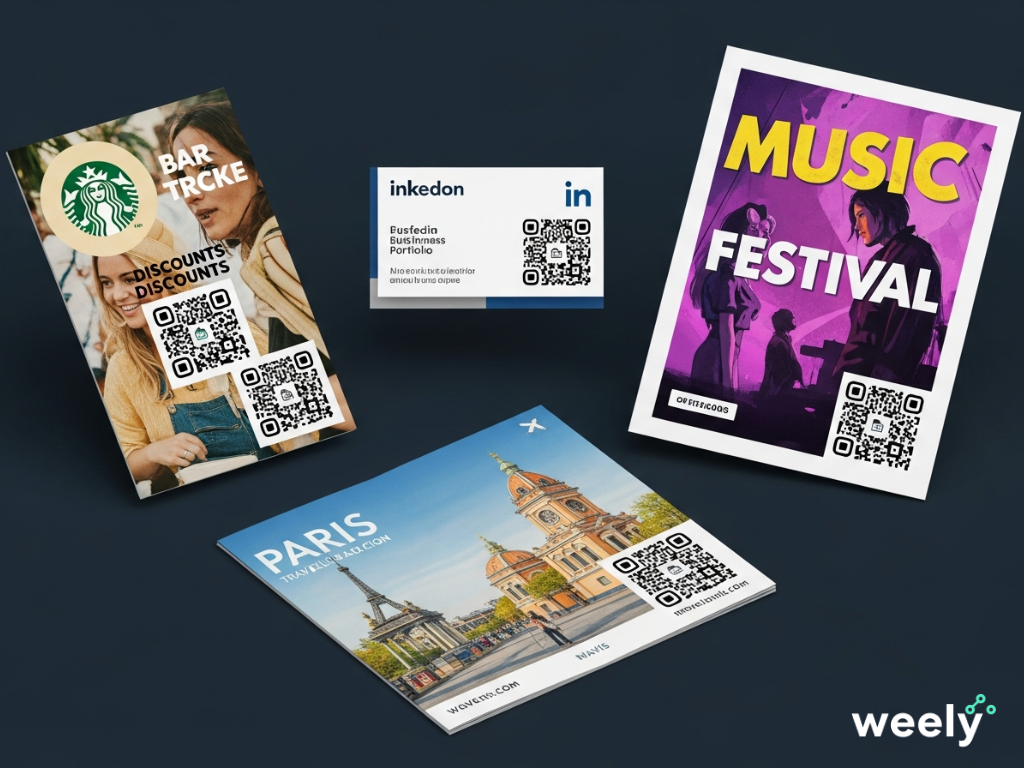
Common print materials that use QR codes:
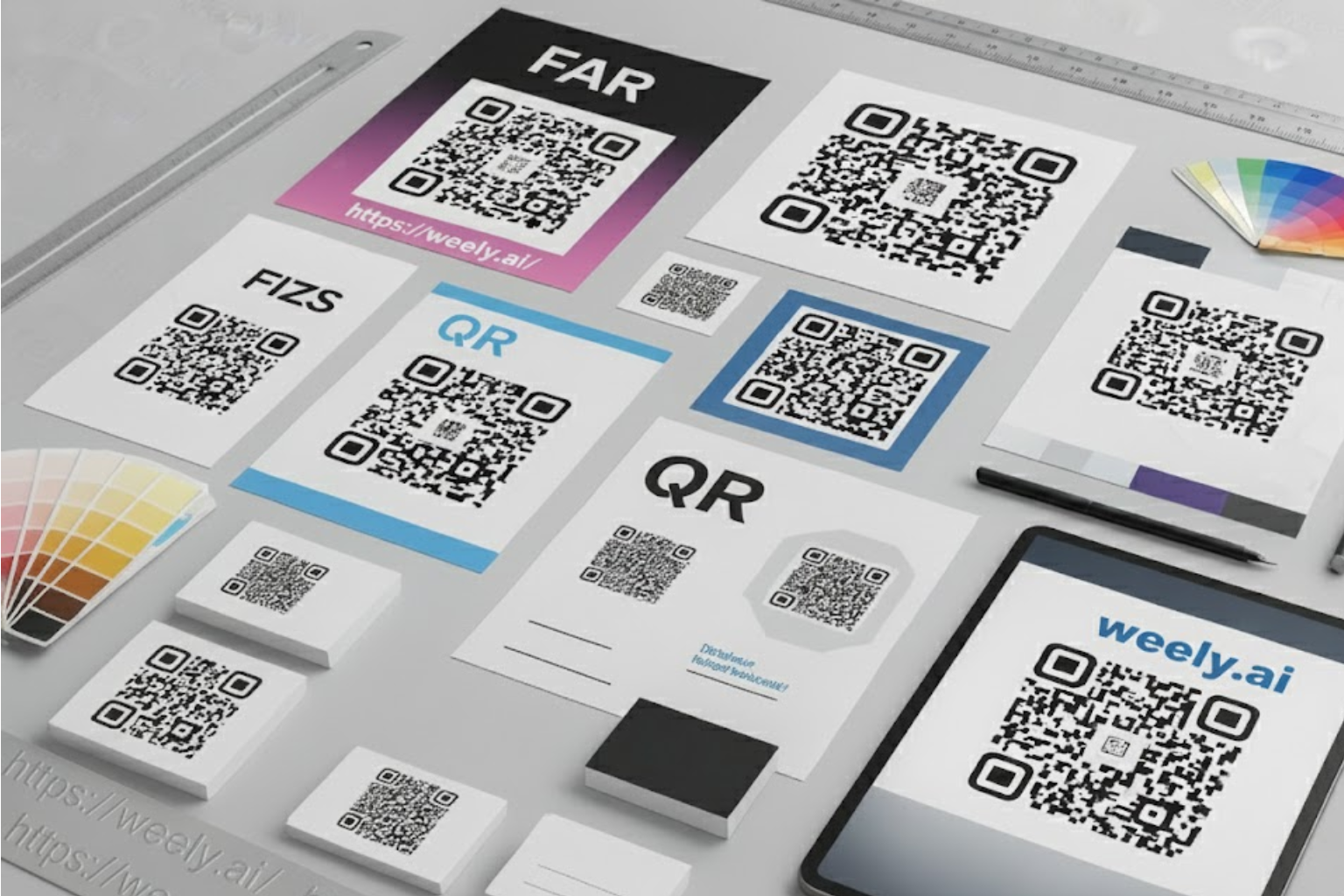
- Flyers: Flyers are a useful way to advertise special promotions, events, and websites.
- Business Cards: QR codes give customers immediate access to your website, portfolio, or contact information.
- Posters: Posters can be seen from a great distance, so they work very well for high-visibility promotions and advertising.
- Brochures: Brochures connect detailed printed material to digital multimedia and product page content.
Benefits of QR Codes in Print Marketing
QR codes for print make print advertising more engaging by providing a direct connection to a web-based resource. Furthermore, print and online marketing are integrated through QR codes due to their ability to display real-time usage reports, track engagement and monitor performance.
Key benefits include:
- Bridging print and digital: Provides access to web pages, social media accounts, videos and product information with a quick scan.
- Increased customer engagement: Creates interactive experiences such as special promotions, newsletter sign-ups, contests and more.
- Actionable analytics: You can see where customers scan your QR codes from geographically, as well as how well they performed.
- Contactless interaction: QR codes allow customers to view content without touching their phone.
- Cost-effective updates: You can modify QR Code destinations at any time without needing to reprint.
- Customer convenience: Consumers no longer need to type in long URL addresses; they will have immediate access while they are on the go.
- Enhanced brand experience: Provide consumers with a greater quality of digital content than they would find in print.
- Personalization: QR codes can allow brands to offer different experiences for different consumers based on who they are and what they are looking for digitally.
Best Dimensions for QR Codes in Print
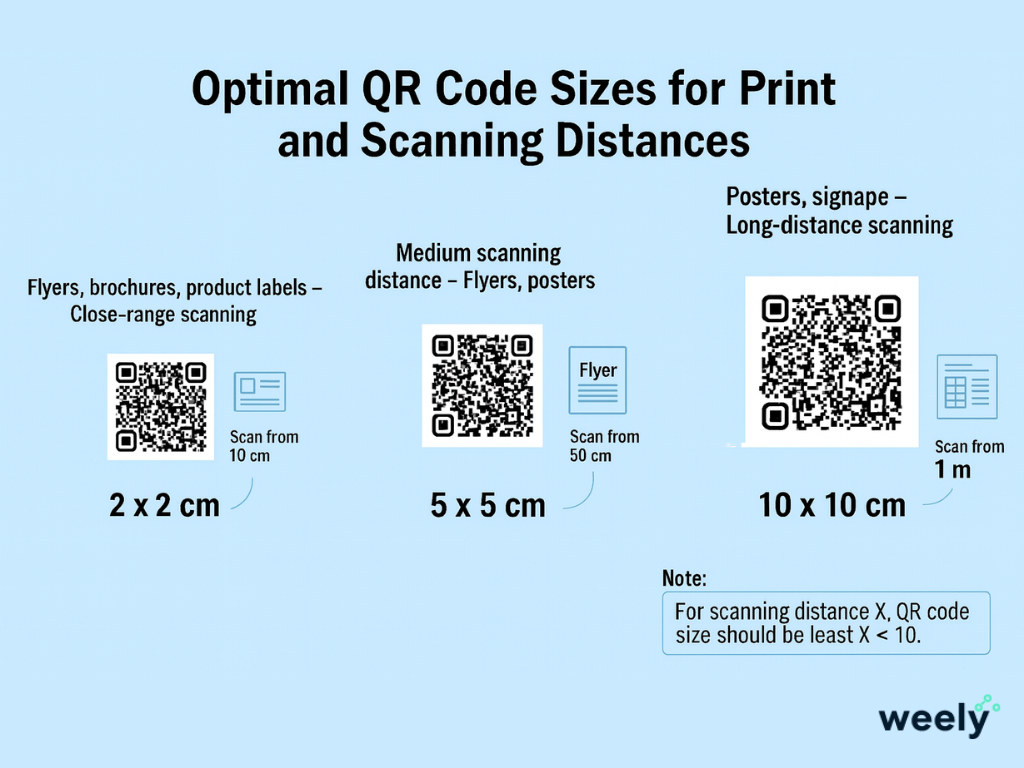
The proper size for a QR code printed out will vary based on where it will be used and how close a person must be to the code to scan it successfully. For example, the smallest printed QR code should be at least 2 cm x 2 cm (approximately 0.8 inches x 0.8 inches) for close-range scanning on flyers, brochures, or product labels.
To calculate the optimal size of a QR code when it will be needed to be scanned from a distance greater than 10 times the size of the QR code, follow the 10-to-1 distance-to-size rule. A QR code meant to be scanned from 10 cm away should be at least 1 cm wide.
Always remember the importance of leaving enough space (a white zone) around a QR code. Before printing, ensure the QR code works properly all the time on different printed materials.
QR Code Sizes for Different Print Materials
When making your QR codes, there are many factors that will determine the size of the code, including where and how the code will be used and viewed from. Therefore, having a properly sized QR code will make scanning easy for your audience, regardless of whether you’re using an online QR code generator.
Recommended sizes:
- Flyers: Minimum size is 2-2.5 cm (0.8-1 inch) for close-range scanning.
- Posters: Larger sizes, 5-10 cm (2-4 inches) for longer-distance viewing.
- Business cards: Minimum size is 2 cm (0.8 inch) for clear and reliable scanning.
How Distance and Placement Affect QR Code Scanning
The size of a QR code in print depends on how far away it can be scanned. The 10:1 ratio is a reasonable rule of thumb. This means that for every 10 cm of scanning distance, the QR code should be at least 1 cm wide. Placement is just as critical. QR codes for print should be put where they’re easy to see, easy to reach, and free from folds, shadows, or curved surfaces. A flat, well-lit code with a clean, silent zone around it helps make sure that all devices can scan it quickly and accurately.
Optimal Formats for Print-Ready QR Codes
You've selected Print-Ready QR Codes, so it is necessary to choose the appropriate file formats to ensure that your QR Codes will be high quality, clear, and able to be scanned across every form of print material. You can use either a vector or high-resolution raster image to create your QR codes for larger-scale printed material and also utilize the correct color mode; both of these will help ensure that your QR code can be scanned clearly on all devices and display correctly when printed out.
Best File Formats for Print (PNG, SVG, EPS, PDF)
When it comes to printed QR codes, the best file format to use is a vector format like SVG, EPS, and PDF because vector files will scale without losing sharpness. They will maintain their original quality even when printed very large (e.g., posters, pamphlets, etc.). PNG files are also acceptable for smaller print materials (300 dpi or more); however, a JPEG should not be used for any large printed materials because it may cause pixelation when the image is enlarged.
Color Mode Considerations – CMYK vs RGB
Use CMYK for printed QR codes to make sure that commercial printing gets the colors right. RGB is made for screens, and when printed, it could change color in ways you don't expect.
Maintaining Contrast
- Use a black code on a light background for the best contrast.
- Black on white scans the most consistently.
- Stay away from color combinations with little contrast or light on light.
Tips for Designing Scan-Friendly QR Codes for Print
When you make QR codes that are easy to scan for print, you can be confident that they will operate on all devices and in all situations. To make codes that are easy to scan and keep people interested, pay attention to size, contrast, file format, and testing. Keeping a distinct calm zone and using vector formats can keep codes from getting blurry or hard to see. Simple, well-contrasted designs will also make codes easier to scan.
Ensuring Scanability Across Devices
To ensure that printed QR codes are easily scanned, use the correct size and create the QR code in a high-contrast color scheme. Test the QR code thoroughly in various environments to confirm that it scans properly on the given technology.
Key Design Tips:
- Optimal Size: 2 cm x 2 cm (0.8 in x 0.8 in) for items intended to be scanned up close; use the 10:1 Distance-to-Size Rule for very large printed materials.
- Quiet Zone: Leave at least a four-module (4×) blank margin around your QR code.
- High Contrast: Use a dark foreground on a light (white) background; please do not use inverted or low-contrast colors.
- Vector Formats: Save your QR code as an SVG or EPS file format so that when enlarged, the image will not become pixelated.
- Simple Design: Avoid including an overly complicated logo or pattern in your QR Code; if you will be including branding in your QR Code, please use a QR Code that has a higher level of error correction (Q or H).
- Right Print Material: Matte, flat surfaces produce the best quality; please do not use glossy or uneven surfaces.
Testing & Scalability:
- Test your QR codes on several devices, both mobile phones and tablets, as well as all common QR code scanning programs (iOS & Android).
- Test scanning conditions in different real-life scenarios (e.g., in natural light).
- Investigate the possibility of using dynamic QR codes so you don’t need to reprint your QR code each time you change it.
- Ensure that all links are suitable for use on mobile devices to help enhance users' experiences when using these types of sites.
Common Mistakes to Avoid When Printing QR Codes
The quality and effectiveness of QR codes used for printing depend on the printer's ability to produce high-quality printed products. Typical printing problems such as low contrast, placement errors, scaling errors, and low-resolution images can result in people being unable to read QR codes. This will reduce the amount of engagement with the QR code and therefore reduce effectiveness. Always test your printed QR codes with multiple devices as well as with a free QR code scanner prior to printing your large-volume QR codes so you can be assured of the best possible scanning experience.
Key Mistakes to Avoid
Even small mistakes in QR codes for print might make them hard to read and less effective as marketing tools. Design, positioning, and print quality are all important to make sure they stay scannable and useful.
Design and Visual Errors:
- Poor color contrast: Avoid using a combination such as light-on-light; use dark codes against light backdrops.
- Overly complex designs: An overly styled code with too many logos or decorations will make the scannable QR code less capable of being read.
- Dense codes: QR codes with a high amount of data and small-sized modules printed too small to be readable.
- Low-resolution or wrong file format: Always use vector files (SVG, EPS) or high-res PNGs when printing.
Placement and Size Errors:
- Cluttered backgrounds: Too much clutter; it's best to put a QR code on a flat, light-colored surface.
- Incorrect size: QR codes should be viewed at approximately five times their actual size.
- Poor placement: Don't put QR codes in weird places or on folds and curves.
- Insufficient white space: This makes a "quiet zone" around each code.
- Proximity to other codes: Each QR code should be at least 2 cm apart from the others.
Material and Printing Errors:
- Unsuitable materials: Never use glossy, shiny, or crumpled material when creating QR codes.
- Poor print quality: Make sure you print on excellent paper and that your printer is working properly.
User Experience Errors:
- Unoptimized destination: Make sure the link goes to a site that works well on mobile devices.
- No testing: Always test scanned codes with different devices and lighting.
- Static links: If you need to modify the items that are linked to your links often, you might want to use dynamic QR codes.
Features to Look for in Print-Ready QR Code Tools
The best QR code generators should give you options for design flexibility and produce clear results for printing; however, you will also want to find a generator that has support for vector format so you can design in any size you want without losing the ability to scan (and read).
Recommended features:
- Vector export options: Download your QR code in SVG, EPS or PDF format so you can scale it to any size or quality required.
- High-resolution output: Generate a 300 DPI PNG at minimum for all of your small printing needs.
- Error correction settings: Select error correction levels (L, M, Q, H) to customize the strength and durability of your QR code, along with flexibility of design.
- Custom colors and branding: The ability to change your QR code's color without compromising the necessary contrast for scanning.
- Dynamic QR Code support: The ability to change the destination URL of your QR Code without reprinting.
- Built-in testing tools: Checking to see if your QR code can be scanned on different devices.
- Simple interface: Set up a QR code generator in an easy-to-navigate format and create fresh QR codes within seconds.
Conclusion: Best Practices for QR Codes for Print Marketing
One of the main factors contributing to the success of QR codes for print is the correct size, excellent contrast, simple design, and high-quality printing that make the reading of the code possible with any device. Weely AI prioritizes delivering clear, accurate solutions that undergo thorough testing to ensure your QR codes remain operational at all times.
Using Weely AI’s QR code generators along with these best practices will ensure that all print media created with QR codes will continue to engage users and that your printed materials will be simple to scan and effective in the marketplace.
FAQs About Printing QR Codes
What is the best QR code size for printing?
If the QR code will be used for close-range scanning (business cards, packaging), then the best possible size for a QR code to be printed is at least 2 cm × 2 cm. For larger posters, the scan distance should be no more than 10 times the QR code size.
Which file format should I use to print high-quality QR Codes?
QR codes should be printed in vector formats such as SVG or EPS since these formats allow for resizing without loss of clarity. While a high-resolution PNG may be suitable for smaller-sized prints, JPG should not be used for larger-sized prints due to the likelihood of pixelation.
What is the best color contrast for printed QR Codes?
The most effective QR code color combinations for print are a dark foreground color compared to a lighter background color, such as black on white. Do not use inverted or light-on-light color combinations; these types of combinations will impact the ability of many devices to read the QR code.
Why is the quiet zone important in printed QR codes?
The quiet zone around the outside of the QR code enables the scanner to detect the edges of the QR code. Without a quiet zone, even a high-quality QR code may become non-scannable and should have at least four modules' worth of quiet zone around the code.
How do I print QR Codes without them becoming blurry or pixelated?
For a high-quality QR code print, export the image as a vector, do not stretch any rasterized images, and always have it printed by a professional printer. Low-quality QR codes printed at low resolutions may pixelate and therefore may not scan reliably.
How can I test printed QR Codes to ensure they work?
When testing QR codes for scannability, different testing devices (iPads/Android devices), scanning apps, and distances should all be tested to yield accurate results. Real-world tests must be conducted in a variety of indoor, outdoor, bright, and dim light situations.
Should I use dynamic or static QR codes for print materials?
The best type of QR codes for print marketing materials are dynamic QR codes, because the destination of the dynamic code can be changed without needing to reprint the QR code, and they are easier to scan because they create shorter URLs from all of the original dynamic QR codes.
Can I add a logo inside my printed QR Code?
Yes, you can place your logo on the QR code, but make sure that it is relatively small and centered in relation to the code. If you want to use your logo, you will need to use a higher error correction level, such as Q or H. You also need to make sure that your logo does not completely cover or block important data modules, which could cause a scanning issue.
What tool can I use to create print-ready QR Codes for free?
Weely AI has a free QR code generator for print production and allows users to export vector files (SVG/EPS) and supports dynamic QR codes for all types of professional printing requirements.