For millions of iPhone users, scanning a QR code is a daily routine. Whether it's opening a menu, connecting to Wi-Fi or making a payment, the process is quick and easy. The best thing is that you don’t need any extra app. Your iPhone has a built-in QR scanner also that you can use. In this guide you will learn how to scan QR code on iPhone in different ways with simple steps that work in seconds.
Why QR Code Scanning Matters Today
QR codes are all over the place. You’ll see them on restaurants, shops, bills, tickets and websites, and even as a QR code for Google reviews that lets customers quickly leave feedback. They make it easier. They speed it up.
When you scan QR code iPhone, it can take you directly to a website, show product details, or even connect you to Wi-Fi. This removes the need to type long URLs or passwords.
Therefore, it is useful to learn how to scan QR code on iPhone in daily life. It saves time and makes digital access easier for everyone.
Everyday uses of QR codes
QR codes are used everywhere, from payments, food ordering, and ticket booking to even business marketing. They are a normal part of today’s digital interactions.
Why iPhone users benefit more
No extra apps needed; iPhone users can scan QR codes immediately. This makes the process quicker than many other devices that still depend on third-party apps.
How to Scan QR Code with iPhone Camera
The simplest way to scan a QR code with your iPhone is using the Camera app. Apple made it so that it could read QR codes without any setup.
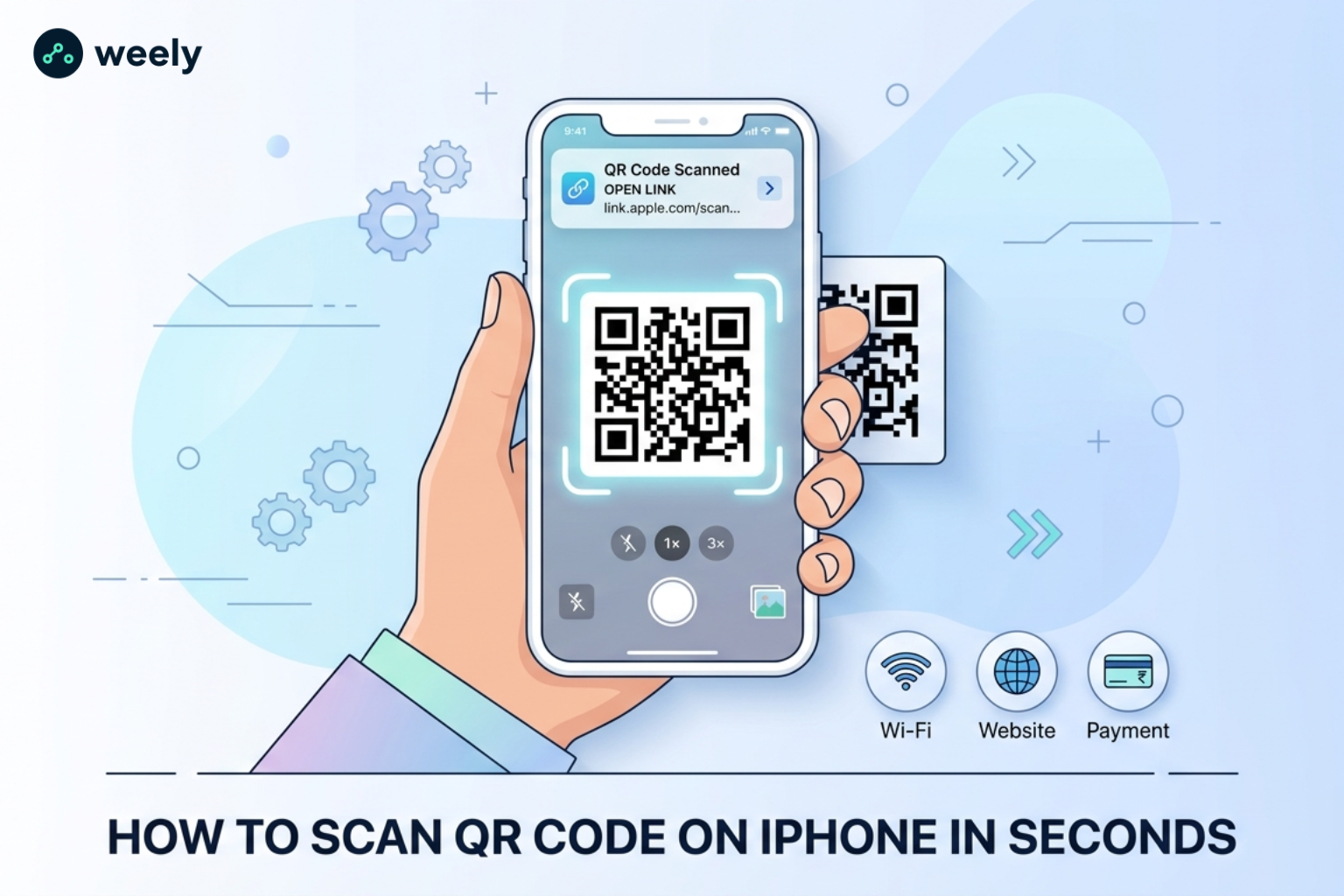
Your iPhone instantly recognizes when you point your camera at a QR code. A small notification pops up on the screen. You just touch it, and the link opens.
This method applies to nearly all modern iPhones. If your camera is working well, this is the quickest way to use QR code on iPhone.
Many users also search for how to scan QR code on Iphone or scan a QR code with an iPhone because they think that it needs a special tool, but the camera is enough.
Step-by-step scanning using Camera app
To use the Camera app with a QR code, open the Camera app and point it at the code. When a notification appears, tap on it, and the link will open on the screen.

Step 1: Open the Camera App
From the Home Screen, Lock Screen, or Control Center, open the Camera app on your iPhone, and your device is ready to scan QR codes immediately with no additional setup needed.
Step 2: Position the QR Code
Set the camera to photo mode, point it at the QR code, and keep the code in the center of the frame. Hold your iPhone still for a few seconds so that the camera can auto-detect it.
Step 3: Wait for Detection
Soon your iPhone will recognize the QR code, and when it does, a notification or highlighted link will appear on your screen.
Step 4: Open the Link
Tap the notification on the screen, and it will open the linked content immediately, such as a website in Safari, a contact card, or a Wi-Fi connection prompt.
How to Enable QR Code Scanner in iPhone Settings
If you can't get your iPhone to read QR codes correctly, you might have to turn off the feature in the settings. If you turn it on, your device will be able to quickly scan QR codes using the Camera app or system tools. This is especially helpful for people who are looking for an iPhone QR reader or who need to fix problems like an iPhone camera QR code not working.
If you have an iPhone running iOS, there are two easy ways to make reading QR codes work better or allow them.
Option 1: Enable QR Code Scanning in Camera Settings
If you choose this option, the normal camera app will instantly find QR codes when you point your lens at them. That's the most important setting for any iPhone that wants to scan quickly.
Methodical steps:
- Open the Settings app on your iPhone.
- Scroll down and tap Camera.
- Find the option Scan QR Codes.
- Turn the toggle ON (green).
Once turned on, your iPhone camera will automatically scan QR codes, so you won't need to use an extra app or do anything else to make them work.
Option 2: Add QR Scanner Shortcut to Control Center
Apple also lets you add a QR reading tool to Control Center so that you can get to it faster. If you want to use the scanner right away without starting the camera app, this will open a straight reader interface.
For iOS 18 and later:
- Swipe down from the top-right corner to open Control Center.
- Long-press on an empty space to enter edit mode.
- Tap "Add a Control."
- Search for "Scan Code" or "QR Scanner."
- Add it to your Control Center grid.
For older iOS versions:
- Go to Settings
- Tap Control Center
- Find Code Scanner under “More Controls”
- Tap the + (plus) icon to add it
When you add a reader, you can open it with just one swipe. This is one of the fastest ways to scan a QR code on an iPhone.
Why Enabling QR Scanner Improves Performance
If you turn these settings on, your iPhone will:
- Detects QR codes faster
- Works directly from the Camera app
- Reduces scanning errors
- Improves reliability for scan QR code on iPhone screen or printed codes
This feature is important for people who use QR codes to pay, get online, read menus, and get digital passes.
How to Scan QR Code from Control Center
Another quick way is to go to the Control Center on your iPhone. This is useful when you need to have quick access without having to open the camera yourself.
When you pull up Control Center, you can tap the QR scanner option and point your phone at the code. The scan is instantaneous.
If you do not see this option, you can add it from the settings. Once added, it’s one of the quickest ways to use the scan QR code iPhone feature.
How to Scan QR Code on iPhone Screen or Photos
Sometimes QR codes are not printed. They could be in photos, screenshots, and messages. Your iPhone can still read them easily in such cases.
Open the image in your Photos app, and your iPhone will automatically detect the QR code. There will be a small link that you can click on to see the post.
This feature is very useful for those users who are looking for how to scan QR code on iPhone screen or scan QR code from photo on iPhone. This eliminates the need for printing or other devices.
Lock screen and quick access options
IPhone also lets you scan quickly right from the lock screen. You don't need to unlock your phone all the way.
You can also swipe to open the camera and point it at the QR code. The system detects it immediately and shows a link on the screen.
This is one of the easiest ways for users looking at how to scan QR code on iphone without an app or how to open QR code on iPhone fast.
What Happens After You Scan a QR Code
Scan QR code iPhone When you scan QR code, your device instantly recognizes the data inside. It can open a website, connect to Wi-Fi using a qr code for wifi, and display contact details.
If it is a website, Safari will open automatically. If it’s Wi-Fi, your phone asks you to confirm that you want to join. Everything happens in seconds, with no manual input.
This seamless experience is why Apple's QR code system is so widely used and trusted.
Third-Party QR Scanner Apps for iPhone
The built-in Camera app on an iPhone can read any QR code, but some users like to use third-party tools because they have more features. You can read QR codes, identify items, and get text out of pictures with apps like Google Lens. You might find these apps useful if you want more tools or power, like Updateable QR codes without reprinting using dynamic QR codes that can be changed anytime.
Features of third-party QR scanner apps:
- Scan history to revisit past QR codes
- Preview links before opening
- Create and share QR codes
- Extra tools like text recognition
The iPhone's built-in QR code reader is enough for most people. The Camera app on your iPhone works right away if you just want to read a QR code for websites, payments, or Wi-Fi. Third-party apps are only useful when you need more complicated functions than just scanning.
Best Tips for Scanning QR Codes on iPhone
For better results with QR code on iPhone, ensure the code is clear and well lit. Hold your phone steady, with a little space between the camera and the code.
If a QR code is damaged or blurry, it may take your iPhone longer to recognize it. In such situations a change of angle often helps.
These little things make scanning go better and more reliable each time.
Why iPhone is Best for QR Code Scanning
The Apple iPhone is one of the best devices for scanning QR codes, thanks to its built-in feature within the Camera app. Therefore, you won’t need additional apps. To scan QR code on iPhone is easy; just open the camera and point at the code. Users can learn how to scan QR code on iPhone easily.
Then, the system detects and processes QR codes quickly. Opens links, payments, or Wi-Fi settings instantly. It’s also fast, accurate, and secure. It also protects user privacy during scanning. The QR codes on screen or on images are easy to read as well. Therefore, this feature is what makes the iPhone a reliable and simple choice for scanning QR codes.
Conclusion
Scanning a QR code on your iPhone is easy, and it only takes a few seconds to learn how. You can use the Camera app, Control Center, Photos app, or even the lock screen.
Whether you are looking for a QR scanner for iPhone, how to scan QR code on iPhone screen, or how to scan a QR code on iPhone, the answer is always the same. Your iPhone has all the built-in it needs.
QR scanning is one of your device's easiest and most useful features.
FAQs: QR Code on iPhone
How to scan QR code on iPhone without any app?
You can scan QR code on iPhone easily without downloading any app. Actually, just open the Camera app that's already on your device and point it at the QR code. Wait for the notification. Tap the link and get it opened immediately.
How to scan a QR code on iPhone using the Camera app?
Open the Camera app, then tap Photo mode. Point it at the QR code. Your iPhone will also automatically recognize it and show a clickable link on the screen.
How to scan QR code on iPhone screen or from a photo?
Open the image in the Photos app. If it has a QR code, your iPhone will pick it up with Live Text. You can also open the content directly by just tapping the link.
How to enable QR code scanner on iPhone settings?
Go to Settings → Camera → Toggle “Scan QR Codes” ON. When it is turned on, your iPhone will automatically scan all QR codes with the Camera app.
Why is my iPhone camera not scanning QR codes?
If your iPhone is not scanning QR codes, make sure that “Scan QR Codes” is enabled in the settings. But also make sure the QR code is clear, well-lit, and undamaged.
How to scan QR code with iPhone from Control Center?
Swipe down from the top right and tap the QR scanner icon. Now, hold your iPhone up to the code. You can also add it in Control Center settings if it isn’t there already.
What is the easiest way to scan QR code on iPhone?
The easiest way, generally, is to use the camera app. Open it and point at the QR code. Your iPhone will do the work for you and present the result immediately.