A free online QR scanner lets you read any QR code in your browser without installing an app. Upload an image or screenshot, decode and view the link, verify the website address, and open it securely.
That sounds simple, and it is. Yet many people still believe they must download a separate app every time they meet a QR code. That habit costs time and storage, and it can even be risky. Some apps ask for too many permissions, show ads, or push you toward paid plans just to read a single code.
The numbers show why a quick, no-install option matters. A TEAM LEWIS survey found that 68% of US consumers scanned a QR code in the past year. eMarketer also projects that 102.6 million US smartphone users will scan a QR code in 2026. QR codes have become an integral part of daily life, offering a convenient way to access online content and digital resources. They sit on menus, tickets, flyers, product boxes, and payment screens, and people expect them to work in seconds.
Safety deserves just as much attention as speed. Security researchers report that 12% of phishing attacks in 2025 contained a QR code. So the best free online QR code scanner does more than read a code. You can check where a QR code directs you before opening the associated link.
This guide explains how to use a free online QR code scanner, scan QR codes from screenshots, scan them on a computer or mobile device, and identify potentially unsafe links. You will also find clear answers to the questions people ask most often. Ready to start? Try Weely AI's free online QR scanner and read your first code in seconds.
What Is a Free Online QR Scanner?
A free online QR scanner is a web page that reads QR codes for you. You don't install anything. Instead, you open the page in a browser such as Chrome, Safari, Edge, or Firefox, add an image of the code, and the tool shows what is stored inside.
People also call this tool a free online QR reader or a free web QR scanner. Although the names may vary, they all serve the same purpose. The tool finds the code in your picture, decodes its pattern, and prints the result as text or a link.
A QR code can hold many kinds of data. One of the most common types of QR codes contains a website URL. But codes can also store plain text, an email address, a phone number, a Wi-Fi login, a map location, or contact details. A reliable scanner reveals the decoded content in full, helping you review the information and decide how to proceed.
Why choose an online tool over a mobile app? There are three main reasons. First, it is faster, because there is nothing to download or update. Second, it works on almost any device with a browser, including shared computers. Third, it lets you read codes that you can't aim a camera at, such as a picture a friend sent in a chat. If you also want to make codes of your own, you can create your own QR codes and test them with the same scanner before you share them.
How to Scan a QR Code Online for Free
A free online QR scanner follows the same simple flow on almost every site. You open the page, give it the code, and read the result. You can finish the whole process in under a minute. If you want to know how to scan a QR code online for free, these four steps cover everything you need.
Before you begin, get your code ready. It might be a photo on your phone, a screenshot on your computer or a file someone emailed you. As long as you have an image of the code, you can scan it. If the code is only on paper, take a clear photo of it first, or use the camera option if your chosen tool offers one.
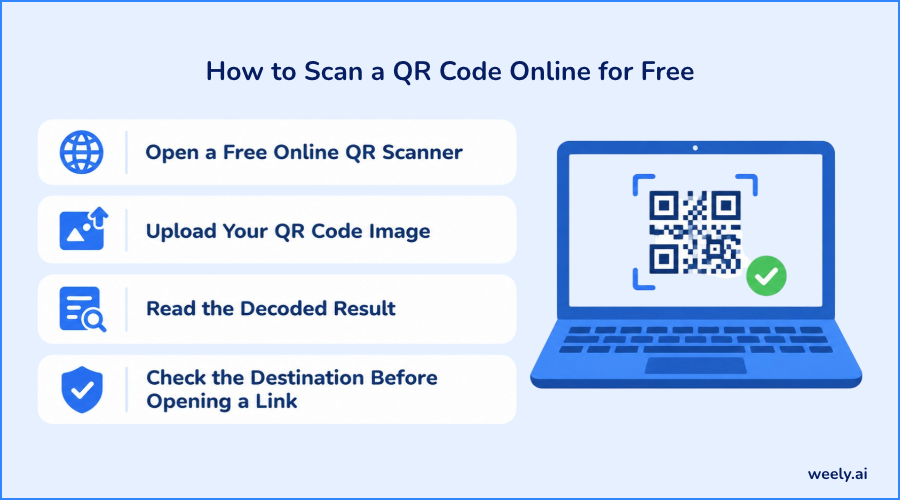
Open a Free Online QR Scanner
Use any reliable, free QR code scanner directly through your web browser. Chrome, Safari, Edge and Firefox all work well. Look for a tool that explains how it handles your files, loads fast, and shows a clear upload area. Avoid pages that ask you to install software, allow strange notifications, or create an account just to scan. An effective free online QR scanner works entirely within your browser.
Upload Your QR Code Image
Select the upload option and pick your file. PNG and JPG files usually work best, and screenshots work too. Many tools also let you drag and drop the file onto the page. Make sure the whole code is in the picture, including the white border around it. That border, called the quiet zone, helps the scanner find the edges of the code. With this one step, you can scan QR code online free without any app.
Read the Decoded Result
Within a second or two, the scanner shows what is stored in the code. It might be a website link, plain text, a Wi-Fi name, a phone number, or contact details. Check the result first before taking any further action. A free online QR code scanner converts the black-and-white square pattern into readable, useful information. Some tools also show a copy button, which is handy when you want to paste the link into a note or a message.
Check the Destination Before Opening a Link
If you get a link, look at the domain name first. Does it match the brand you expected? Are there odd spelling changes, extra words, or strange endings? When anything looks wrong, close the page and do not tap the link. This one habit protects you from most QR scams. If you are unsure, type the official website address into your browser yourself instead of using the link from the code.
Quick Tips for Faster Results
Keep your image sharp and well lit. Crop out extra background so the code fills most of the picture. Scan one code at a time, because pictures with several codes can confuse some tools. If the scan doesn’t work, try using a clearer copy before concluding that the QR code is damaged. A small precaution early on can save valuable time later.
How to Scan a QR Code From an Image or Screenshot
Many QR codes reach you as pictures, not paper. A friend sends one in a chat, a company emails a ticket, or you spot a code on a web page. Since you can’t scan these with a camera, a free online QR scanner lets you decode the image directly. Yes, a QR code will work from a screenshot, as long as the image is sharp and the whole code is visible.
This method also helps when your phone is the only device that holds the code. For example, you might get a code on your phone but then have to scan it on your laptop. Instead of typing a long link by hand, you can save the image, upload it and let the tool do the reading.
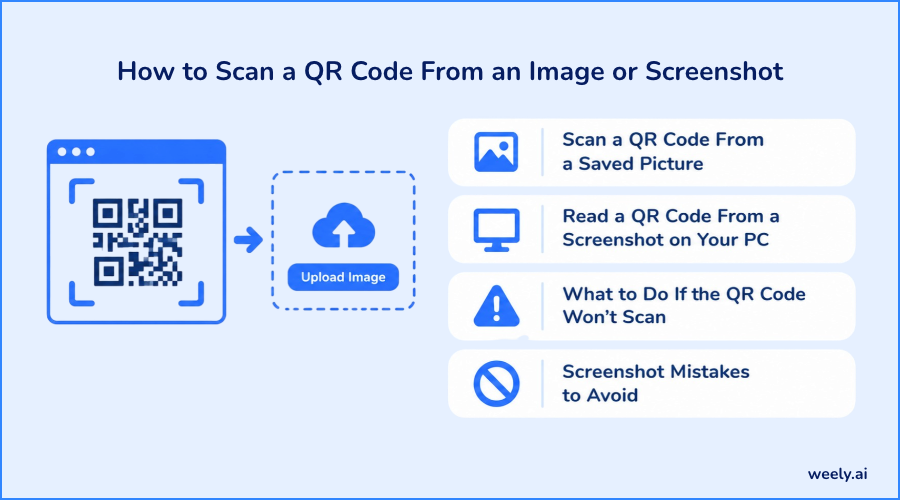
Scan a QR Code From a Saved Picture
Save the image to your device first. On a phone, use the share menu to save it to your gallery. On a computer, right-click the picture, and choose to save it. Then open the scanner, upload the file and wait for the result. This works well when you need to scan QR code from image online, such as event tickets, menus, and flyers. An online QR scanner from image tool can also help you read QR code from photo online when you took the picture with your phone camera.
Read a QR Code From a Screenshot on Your PC
On Windows, press Windows + Shift + S and drag a box around the code. On a Mac, press Command + Shift + 4 and do the same. Save the capture, then upload it to your QR scanner online free tool. This is the easiest way to scan QR code from screenshot files when the code sits on your own screen. It also answers a common question: how do you scan a QR code from a picture on PC? Capture it, upload it, and read the result. If the code looks small on your screen, zoom in before you take the screenshot so the squares stay crisp.
What to Do If the QR Code Won't Scan
Sometimes a scan fails. Try these quick fixes:
- Crop the picture so the code fills most of the frame.
- Use a sharper, higher-resolution image instead of a blurry one.
- Remove glare, shadows, or filters that hide the squares.
- Keep the white border around the code so the scanner can find its edges.
If it still fails, the code may be damaged, too small, or expired. Request an updated copy from the sender. You can also read this guide on why a QR code is not working for deeper troubleshooting, including problems that start with how the code was made.
Screenshot Mistakes to Avoid
A few small mistakes cause most failed scans. When cropping the image, make sure the edges of the QR code remain intact. Do not change the colors, or stretch the image, this will impact the readability. When scanning a picture of a screen, ensure the screen is bright enough. Also, avoid saving the image multiple times, because each copy can lose detail. For the best results, keep the original screenshot and upload it to the free online QR scanner.
How to Scan a QR Code on a PC, Laptop, or Phone
Uploading an image and using a live camera are two different things. Uploading reads a saved picture. Live scanning uses your camera to read a code in real time. Check which options your free online QR scanner supports before you start, because some tools offer both and others offer only one. Either way, the goal is the same: get a clear view of the code and read what is inside.
Scan QR Codes on Windows or a Mac
A QR scanner online free for PC works the same way on Windows and Mac. Take a screenshot or save the picture, open the scanner in your browser, and upload the file. You can scan QR code on computer online with no download at all. Wondering if you can scan QR code on laptop without a phone? Yes, you can. An online QR scanner for desktop simply needs a browser and an image. This is useful at work, where you may not want to install new software on a company computer.
Scan a QR Code Using a Laptop Camera
If the tool supports it, allow camera access when your browser asks. Then hold the code up to your webcam and keep it steady. A QR code scanner camera online free feature is handy when the code is printed on paper. You can also use your laptop’s camera to scan a QR code for fast verification. Good light helps a lot, so avoid sitting with a bright window behind the code. If you would rather not share your camera, just upload a photo instead. That is how you use an online QR scanner without camera access.
When your browser asks for camera permission, read the message carefully. Allow it only for sites you trust, and only for as long as you need it. You can switch the permission off again in your browser settings once you finish.
Scan QR Codes on a Phone Without Downloading an App
A free QR code scanner online mobile page works right in your phone browser. Open the page, tap upload, pick a photo from your gallery, and read the result. Many phone cameras also read QR codes on their own, but a browser tool helps when you only have a saved image, or when you want to see the full link before opening it. If you searched for a QR code scanner online free Google result, choose a site that clearly explains how it treats your images.
Phones also make it easy to scan a code that arrives as a screenshot. Save it to your photos, open the scanner page, and upload it. You do not need to leave the browser, and you do not need to install anything.
A Quick Note on Barcodes
A free online bar code scanner reads the straight-line barcodes on products, and these are different from square QR codes. A barcode stores a short number, while a QR code can hold links, text, and much more. If you want the full comparison, read this guide on the difference between a QR code and a barcode. Always check that a tool supports the format you need before you upload anything.
Is It Safe to Use a Free Online QR Scanner?
Usually yes, if you pick a trusted site and stay alert. A free online QR scanner only decodes the image. The real risk is the link inside the code, and the scam that uses fake codes is called quishing. One report says only 36% of quishing incidents are correctly identified and reported, so many people never realize they were targeted. No tool can promise perfect safety, so a few habits matter. So, is an online QR scanner safe? It can be, when you combine a careful tool with careful clicking. For a wider look at the topic, see this guide on whether QR codes are safe to scan.
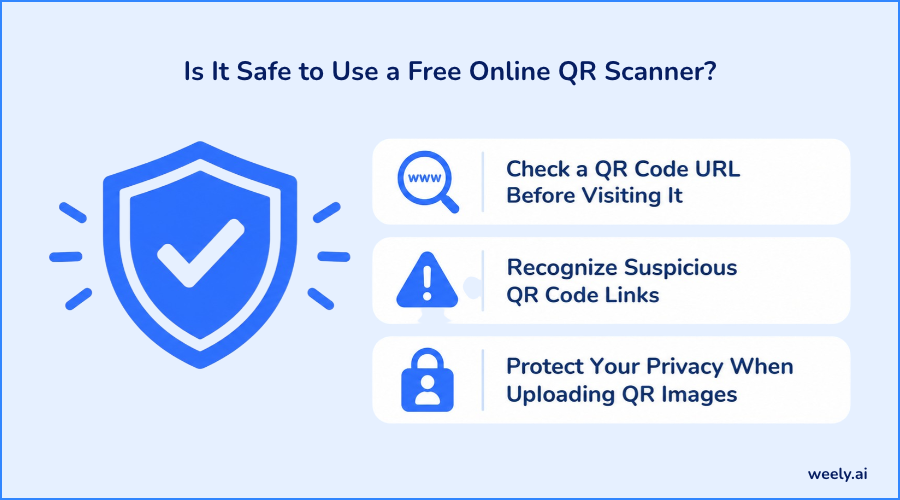
Check a QR Code URL Before Visiting It
Always read the full web address first. Look at the main domain, not just the first few words. A safe page usually matches the brand you expected. If you feel unsure, skip the link and type the official website yourself. This also answers a popular question: where does a QR code take you when scanned? It takes you to whatever address is stored inside, which could be a site, a file, or an app link. That is why it pays to know how to check a QR code link before opening it. Choose a scanner that displays the complete URL first, allowing you to check it before opening the link.
Recognize Suspicious QR Code Links
Watch for these warning signs:
- Links that hide the real destination behind odd characters
- Misspelled brand names or strange domain endings
- Pages that ask for passwords, card numbers, or urgent payments
- A sticker placed over another code on a sign or parking meter
If you see any of these, stop and do not enter personal details. Short links are not always bad. Many legitimate brands rely on shortened URLs to keep their QR codes neat and easy to read. The key is to preview where a link goes, and to trust the source that gave you the code.
Protect Your Privacy When Uploading QR Images
Read the privacy policy to see whether the site keeps your uploaded files. Do not upload codes that hold private data, such as boarding passes, bank details, or login codes. Choose a safe free online QR code scanner that explains how it works, and avoid any site that asks for more access than it needs. If a page demands your email, phone number, or location just to read one image, leave and pick another tool.
Where You Will Need a QR Scanner Most Often
Once you know how to scan online, you will notice how often it helps. Here are the everyday places where a quick scan saves time.
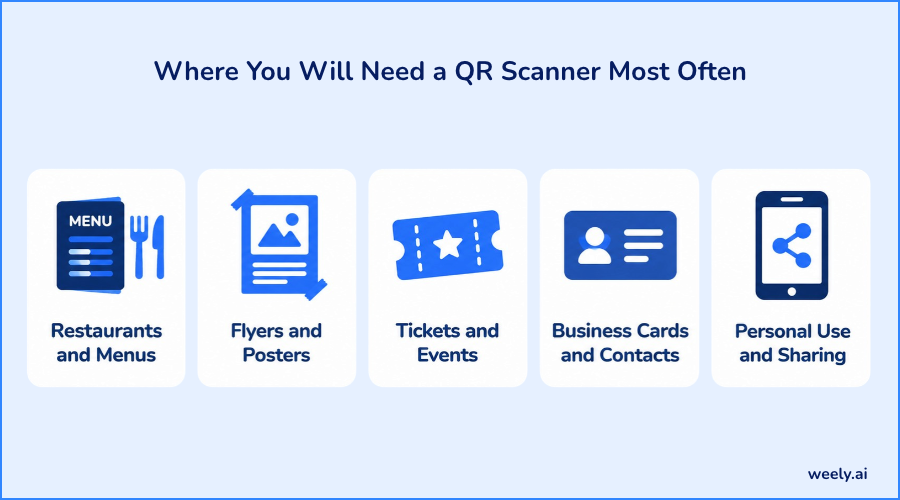
Restaurants and Menus
Many cafes now print a code on the table instead of a paper card. If you only have a screenshot of the code, or a friend shared it, you can still open the page by uploading the image. Learn how menu QR codes work, or see how QR codes for restaurants can handle ordering and reviews.
Flyers and Posters
A flyer often hides a discount, a form, or a sign-up page behind a code. If the flyer is a PDF or a photo, a browser scanner reads it in seconds. Let’s explore QR codes on flyers and learn how to ensure they remain clear and scannable.
Tickets and Events
Event tickets, passes, and check-in sheets use codes to save time at the door. Before a big day, you may want to check that your ticket code opens the right page. See how QR codes on tickets work, and how teams use QR codes for event management from invite to check-in.
Business Cards and Contacts
A code on a card can open a contact page or a profile in one scan. If you received a card as a photo, upload it and read it right away. You can read about QR codes on business cards, or try a business card maker to design one with a working code. Some people also point the code at a link-in-bio page that holds all their important links in one place.
Personal Use and Sharing
QR codes make it easy to share Wi-Fi access, photo collections, or music playlists with friends. When someone sends you one, a browser scanner lets you read it without setting up a thing. Find ideas for QR codes for personal use that make daily life easier.
Scan Your QR Code Online for Free
You don't need an app to read a QR code. A free online QR scanner works in any browser, reads images and screenshots, and shows you the link before you open it. The steps are short: upload your picture, read the result, check the address, and stay safe.
Remember the key habits. Use a sharp image with the full code in view. Pick a tool that is clear about privacy. Look at the web address before you tap, and never enter passwords or card details on a page you reached by surprise. These small steps protect you from scams while keeping scanning quick and easy.
Ready to scan? Try Weely AI's free online QR scanner now and read your code in seconds. If you also want to make your own codes and track how they perform, sign up Weely AI account and get started.