People use customer reviews a lot to help them choose businesses. Before going to a store, restaurant, or service provider, most people read reviews. The challenge is simple: happy customers rarely remember to leave reviews later.
This is where QR codes for Google reviews really help.
Customers can scan a Google Reviews QR code with their phone and go straight to the review page. The whole thing takes hardly any time. More people leave feedback because it is quick and easy.
This blog will show you how to make a QR code for Google reviews, how businesses can use them well, and how they can help get more reviews and higher ratings online.
What Is a QR Code for Google Reviews?
A QR code for Google reviews is a code that customers can scan to go straight to your Google review page.
Customers just:
- Open their phone camera (QR code scanner)
- Scan the code
- Click the link
- Give a review
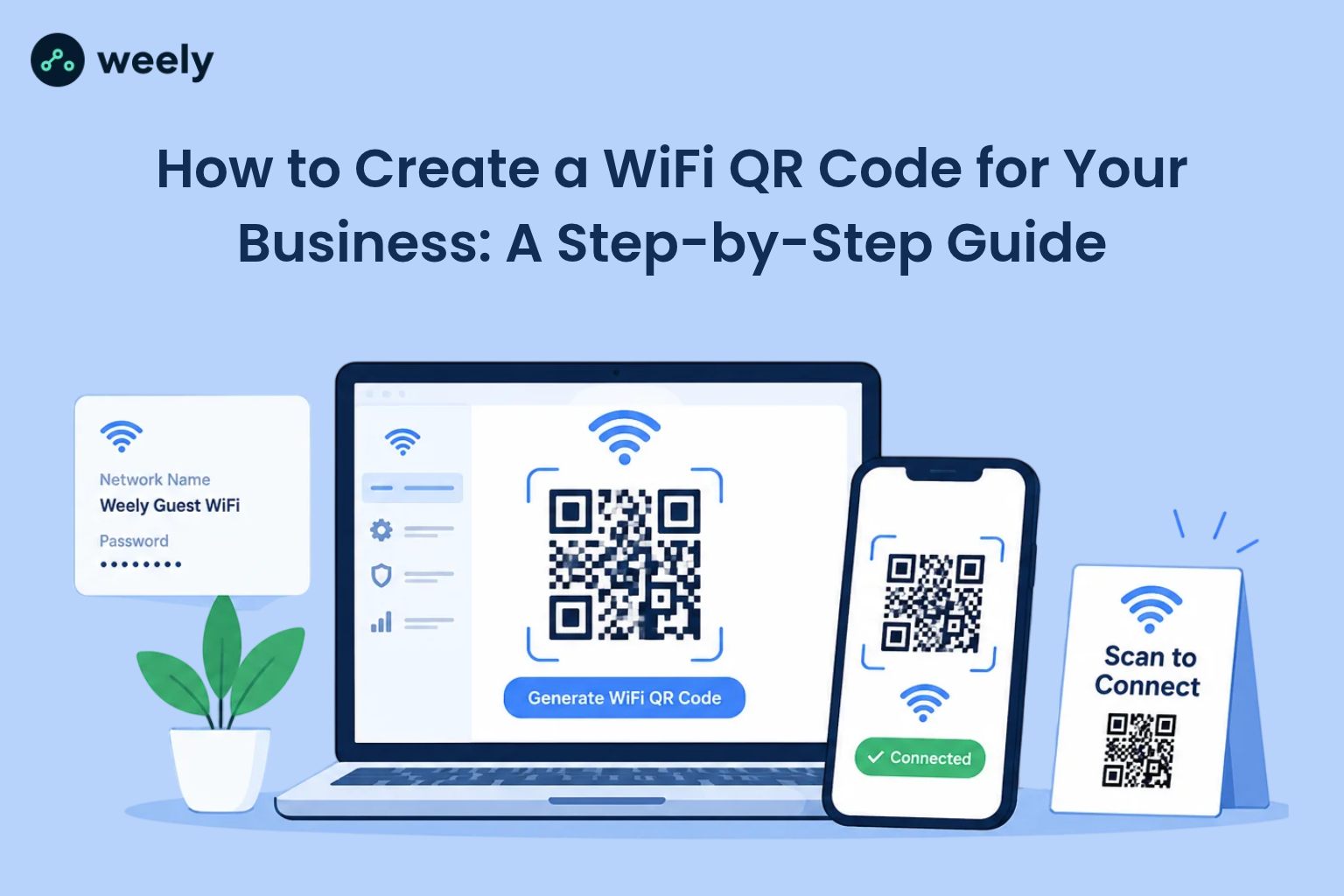
A lot of the time, businesses make these codes with a QR code generator and put them on receipts, posters, tables, or packaging.
This simple process makes it easier for customers to leave reviews right away. A Google Reviews QR code works by keeping a link to the review page in the code. When someone scans the code with a QR code scanner, the phone will automatically open the review page in either the browser or the Google Maps app. This means that customers don't have to look for the business online themselves.
A QR code for Google reviews makes it much more likely that customers will leave a review because the process is so quick. Businesses that use a Google QR code for reviews often see their review count go up steadily.
Why QR Codes for Google Reviews Are Important for Businesses
Reviews on the internet have a big impact on what people buy. Research shows that most people trust reviews just as much as personal recommendations. Using QR code marketing is a good way for businesses to get people to leave reviews right away.
Using a QR code for business reviews solves a common problem. Customers often forget to write reviews later. They can give feedback right away with the quick scan option.
Convenience is another reason why businesses use QR codes for Google reviews. Customers like it when things are quick and easy. When businesses provide a Google Reviews QR code, they remove extra steps. Customers can share feedback instantly.
A QR code for business also makes customers more interested. People are more likely to leave a review if it's simple to do so. This makes people interact more over time. Because of this, businesses get more reviews and are considered more trustworthy online.
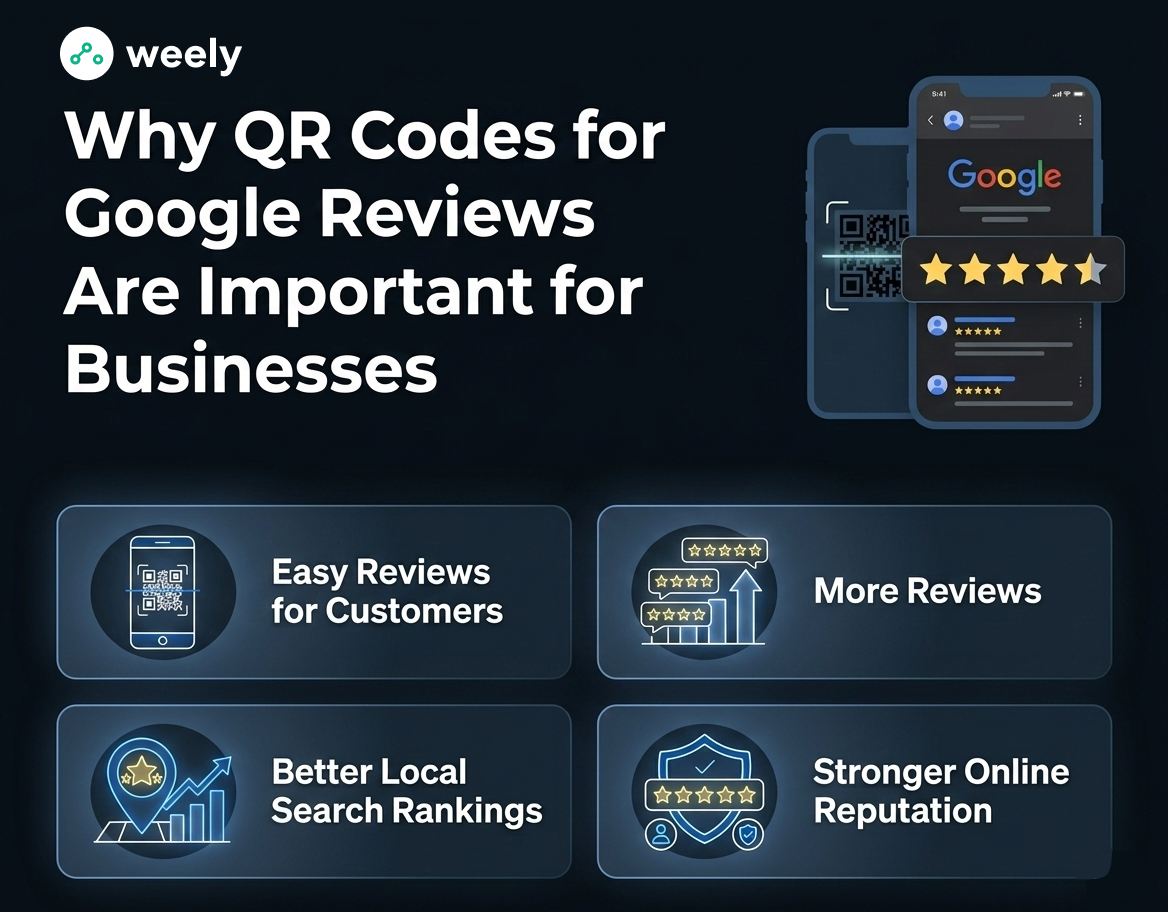
1. Makes Reviews Easy for Customers
Customers don't have to look for your business online. They can just scan the code. A quick scan of the Google Reviews QR code takes you right to the review page.
Many businesses use QR codes for Google reviews because they are so easy to use. Customers can go straight to the review page with just a QR code scanner. They don't have to type or search by hand.
2. Increases Review Volume
More customers leave feedback when it's simple to do so. Businesses using QR codes for Google reviews often see steady growth.
When you scan a Google QR code for reviews, it takes you straight to the review form. Customers can complete the process in just a few seconds. Since it's quick and easy, the number of reviews keeps going up on its own.
3. Improves Local Search Rankings
Google utilizes reviews as part of their ranking process for local businesses found through searches on either the mobile or computer platforms. Businesses with more reviews and better star ratings will receive greater visibility because of these criteria.
Using a QR code for Google reviews allows businesses to receive authentic feedback from customers, thereby helping to establish their presence within the local search results.
4. Strengthening Online Reputation
A continuous flow of positive feedback will create a foundation of trust between you and potential customers who may consider doing business with you for the first time.
For instance, being able to quickly share their positive experience by using your well-placed Google Reviews QR code gives your happy customers an avenue to share their positive impressions of your company, which builds further credibility with other consumers who might think about engaging with you, therefore building up your overall reputation as well as your company's brand.
How QR Codes for Google Reviews Work
Making a Google QR code for reviews is easy.
A QR code has a link that isn't obvious. When you scan the code, it takes you to a certain webpage. It directs you to your Google review page in this instance. Many businesses also use dynamic QR codes. With these codes, the link to the location can be changed without having to change the QR code itself. Businesses can use dynamic QR codes for marketing campaigns, product information, and business promotions, as they allow for material changes at will.
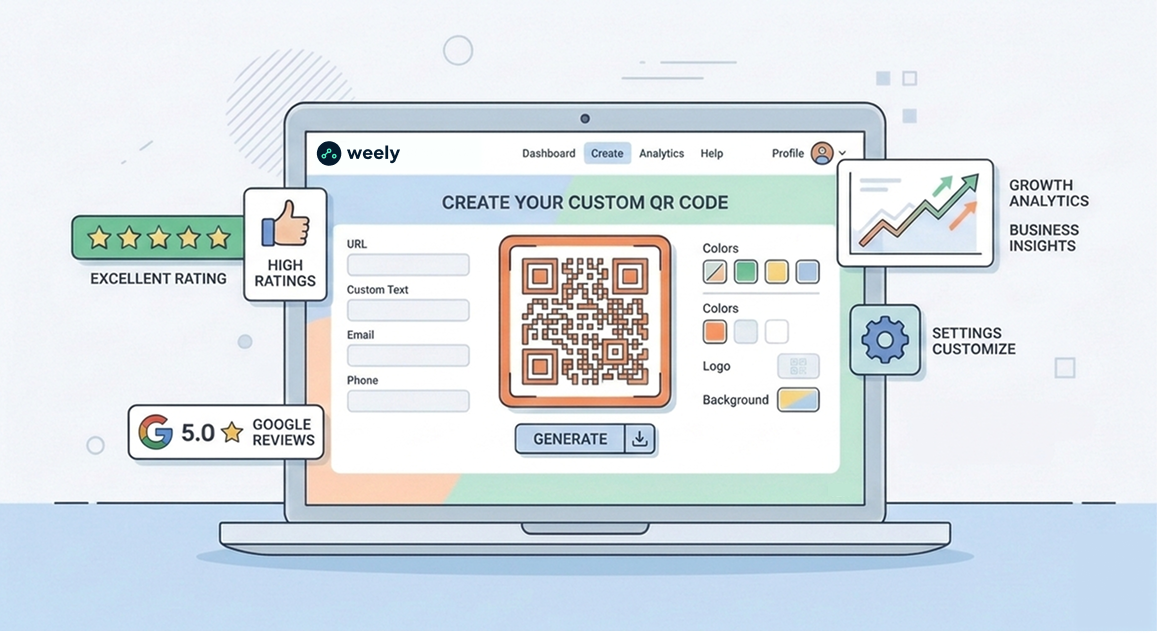
A QR code generator is what most businesses use to make this code. The generator transforms the review link into an image, which customers can scan using a QR code scanner.
Step-by-Step Process:
- A business creates a Google review link QR code.
- The code is either printed or shown in some other way.
- Customers use a QR code scanner to read the code.
- The link takes you to the form for Google reviews.
- Customers give their feedback.
More customers will probably participate because the process only takes a minute.
The beauty of a QR code for Google reviews is its simplicity. Customers only need the camera on their smartphone to scan the code. The Google Reviews QR code takes them to the right page after scanning, so they don't have to navigate.
How to Create a QR Code for Google Reviews
Making a QR code for Google reviews is easy and only takes a few steps.
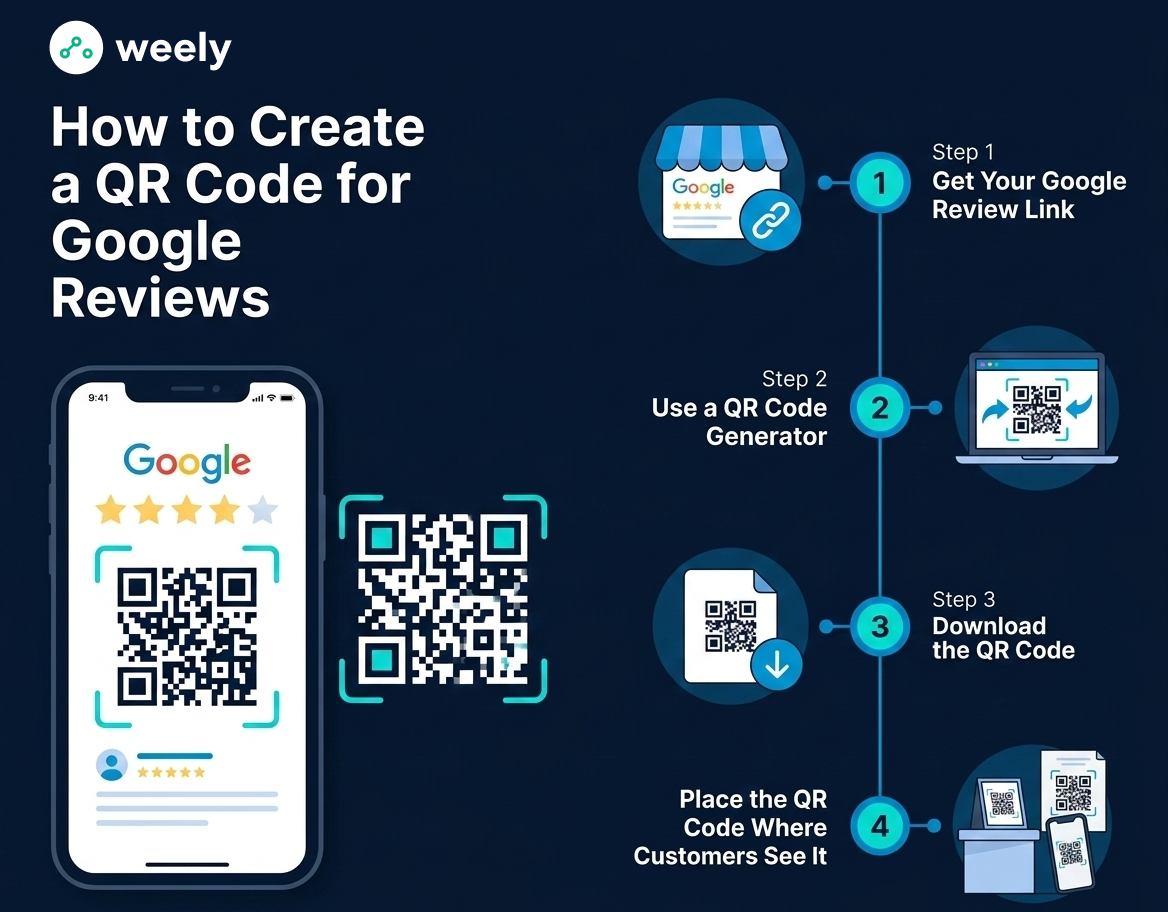
Step 1: Get Your Google Review Link
In your Google Business Profile, find your Google review page first.
Then, copy the direct link that lets people write a review. This link will be used to create your Google Reviews QR code.
Many companies also share this link on different marketing channels. With the link, it's easy to make a Google QR code for reviews using an online QR code generator.
Step 2: Use a QR Code Generator
After you've copied your reviews link into a QR code generator, this will create an image of the link in the form of a scannable QR code for you and those scanning your QR code to use to submit reviews to Google.
Many of the tools mentioned above offer free options for creating a Google review QR code generator and will fulfill each of these criteria quickly and simply. These tools instantly create a QR code for Google reviews. Customers can then scan it using any smartphone QR code scanner.
Step 3: Download the QR Code
Please download the code as an image file once it is ready.
You now have a QR code that will take you to Google reviews. Customers can scan it at any time.
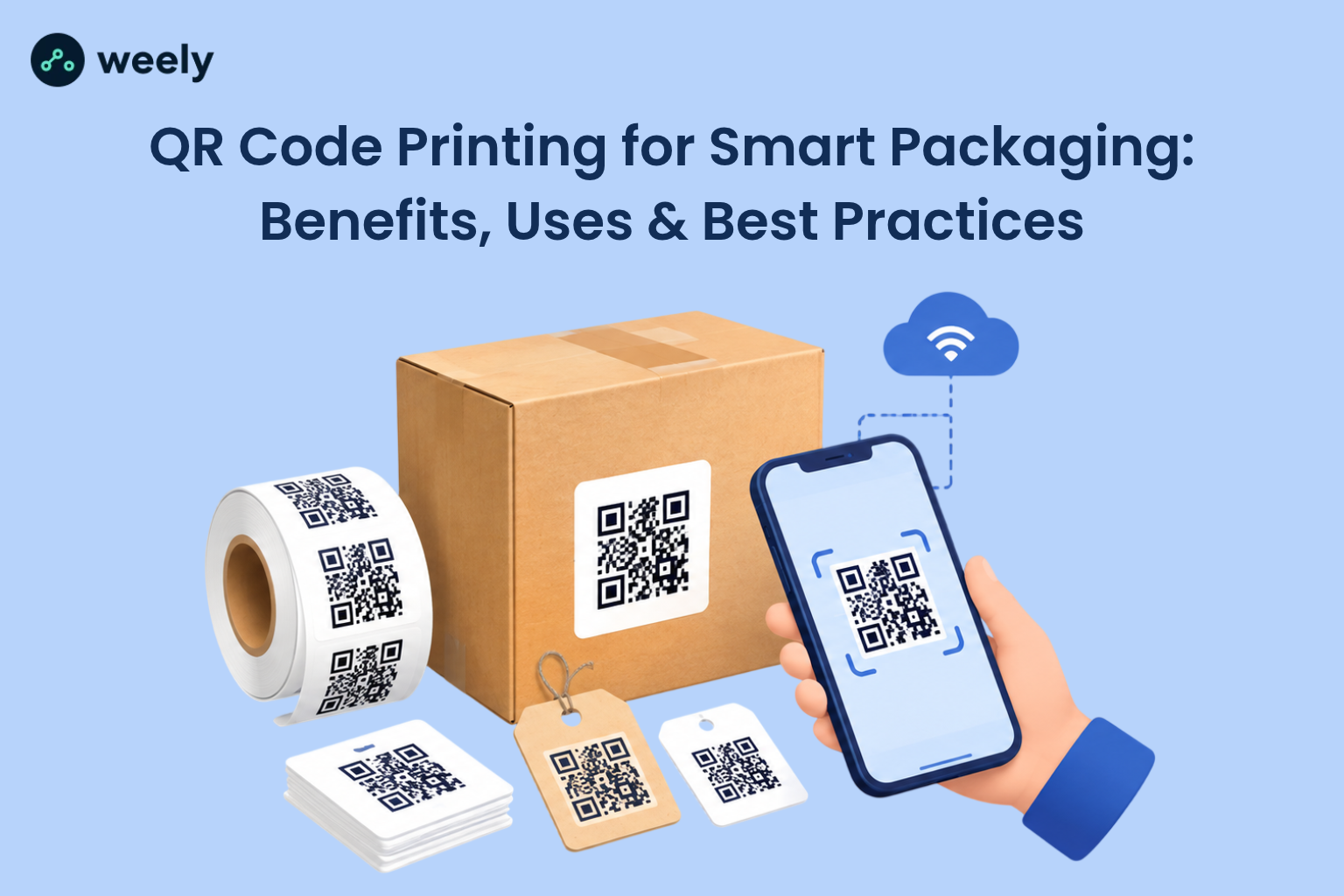
Many businesses also save the Google Reviews QR code in high resolution. You can now use QR codes for print more easily on business cards, signs, receipts, and product packaging.
Step 4: Place the QR Code Where Customers See It
Businesses often place their QR code for business reviews in visible locations, such as:
- Receipts
- Tables
- Packaging for products
- Entrances to stores
- Signs
- Cards for business
- Signatures in emails
Customers are more likely to scan it if they can see it easily.
Putting a Google QR code for reviews in the right places makes sure that customers see it when they have positive experiences with the business. As a result, this makes it more likely that they will write a favorable review. It's important to choose top secure QR code generator because safe generators offer better customization choices, tracking, and analytics.
How Businesses Can Use QR Codes for Google Reviews
When you put a QR code for business reviews at the right time in the customer journey, it works best. To get more feedback, many businesses use QR codes for Google reviews in both online and offline settings.
Restaurants and Cafes
Restaurants often place a Google Reviews QR code on:
- Table tents
- Menus
- Bills or receipts
Customers can scan the QR code for Google reviews while waiting or after finishing their meal.
Retail Stores
Retail stores print Google QR codes for reviews on receipts or packages. Customers scan the code at home and leave comments.
A lot of the time, stores use a QR code generator to make and change their review codes quickly at many different places.
Service Businesses
Salons, gyms, repair shops, and clinics often display a QR code for customer reviews at the reception desk. This makes people more likely to write reviews right after the service.
Scanning the Google reviews QR code with a QR code scanner is a quick and easy step because most people have smartphones.
Best Practices for Using a Google Reviews QR Code
Simply creating a Google Reviews QR code is not enough. Placement and messaging are also important. It's easier for customers to leave reviews after buying something or getting service from a business that uses it as part of their offline marketing strategies.
Ask Customers Politely
A short message can help get people to act.
For example:
- "Did you like our service? Scan to write a review.
- "Your comments help us get better."
Customers are more likely to scan the QR code for Google reviews if they know what it is for.
Place the Code at the Right Time
When customers are happy, they are more likely to leave a review.
Some good times are:
- After completing a service
- After a meal
- At checkout
When you show a Google QR code for reviews at these times, it makes it more likely that customers will leave feedback.
Keep the Process Simple
Please ensure that your QR code for Google reviews functions properly and directs you straight to the review page.
Before printing, always test your QR code scanner with the code. This makes sure that scanning the Google Reviews QR code goes smoothly for customers.
How Customers Leave Reviews with a QR Code Scanner
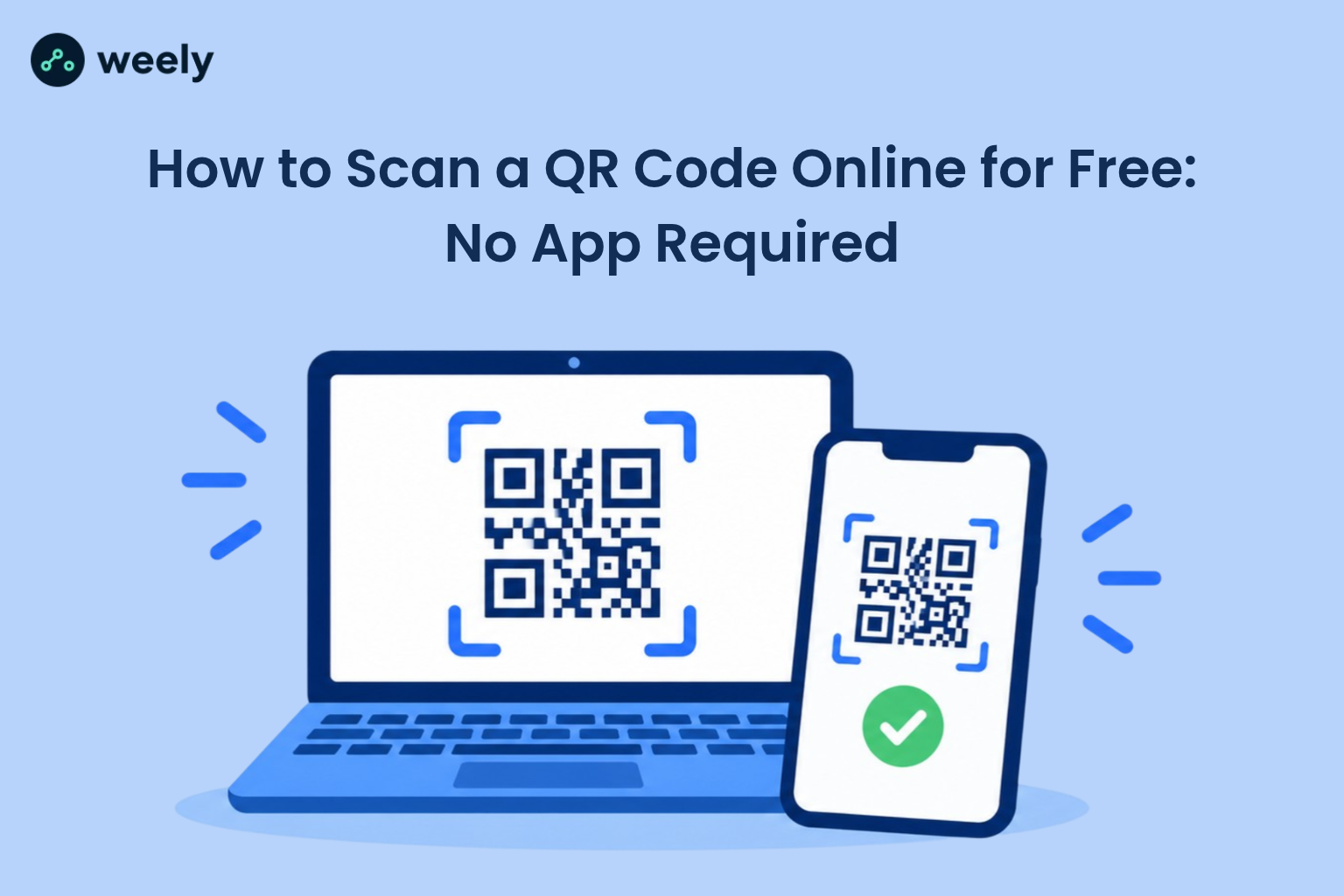
Most smartphone cameras already have a QR code scanner built in.
Customers just:
- Turn on the camera on your phone.
- Point it at the Google Reviews QR code.
- Click the link in the notification.
- This opens the review page right away.
Businesses get more people to participate because the process is so easy.
Customers are more likely to leave honest, detailed feedback because they can do it right after using the product or service. This makes it less likely that customers will forget or put off writing a review.
Some companies give customers a small reward, like a discount or loyalty points, along with a QR code to get them to leave feedback. One cafe might give someone who scans and leaves a report a free drink on their next visit.
Why QR Codes Are Perfect for Local Businesses
A QR code for business reviews is a great idea for businesses in your area.
Reviews and ratings have a big impact on local search results. Reviews that are good for a business also make it easier to find. Many small businesses use a QR code for small business marketing to get more customer feedback. The code makes it easy for customers to leave reviews, which brings more people into the store.
When customers use a Google QR code for reviews, they help businesses:
- Increase review volume
- Improve local rankings
- Build trust with new customers
This simple tool can make a big difference for small businesses.
A QR code for Google reviews also helps businesses get feedback on a regular basis. The Google Reviews QR code actively encourages customers to share their experience instead of waiting for them to do it on their own.
Future of QR Codes in Review Marketing
QR codes are becoming a big part of online marketing.
Companies now use QR codes for Google reviews not just in stores but also in digital ads.
Some examples are:
- Digital receipts
- Email campaigns
- Social media posts
- Event booths
As more and more people use their phones, Google reviews and QR code strategies will be even more important for keeping your reputation in good shape.
Many businesses are now combining QR code generator tools with marketing campaigns to collect reviews more efficiently. Companies can get feedback from more people by adding a QR code for Google reviews to many places.
Final Thoughts
It can be hard to get reviews that are always the same. But using QR codes for Google reviews makes the process easy and useful. You can get rid of a big barrier to feedback by making a Google Reviews QR code and putting it where customers can see it.
Customers can quickly scan the code, go to the review page, and leave their rating. This is a quick and easy process. A QR code for business reviews is one of the easiest and most effective ways for businesses to improve their reputation, get more exposure, and build trust. It also gets more people to take part, which is another benefit. Because of this, credibility grows over time.
Frequently Asked Questions
What is a QR code for Google reviews?
A QR code for Google reviews is a code that customers can scan to get to your Google review page. For instance, it makes it easy and quick for customers to leave feedback. This technique also helps businesses get more reviews without having to ask customers to look for them on their own.
How do I create a QR code for Google reviews?
A QR code generator can help you make a QR code for Google reviews. Just copy and paste the link to your Google review into the generator. Then, it makes a QR code for Google reviews. People can scan it with any QR code reader. You can also change the design to fit your brand.
Can a QR code for Google reviews increase my business ratings?
Yes. A Google QR code for reviews makes it easy to leave one. So, more people leave reviews. Because of this, businesses that use a QR code for reviews often get more reviews and rank higher in local search results.
Where should I place a Google Reviews QR code for maximum impact?
Put a QR code for Google reviews in a place where customers will see it a lot. Receipts, table tents, posters, product packaging, business cards, and email campaigns are all excellent examples. Also, putting it in the right place makes more people want to scan it.
Do customers need a special app to scan a Google Reviews QR code?
No. Most smartphones come with a QR code scanner built in. Customers can go right to your review page by opening their camera, scanning the Google Reviews QR code, and going straight there. So, it's very easy for them to write reviews.
How do I use a QR code generator to make a Google Reviews QR code?
Paste the link to your Google review into a QR code generator. You can change the design if you want. After that, the generator makes a QR code that can be scanned for Google reviews. You can either print it out or send it online. This method also lets you use reviews in both online and offline marketing.
Can a QR code for business reviews work for all types of businesses?
Yes. A QR code can be used to leave reviews for restaurants, coffee shops, stores, salons, gyms, service companies, and more. Any business can easily get comments and improve their online reputation by using it. A QR code for reviews on Google also motivates repeat customers to interact more.
How do Google Reviews QR codes improve customer engagement?
This Google Reviews QR code makes it easy for customers to leave feedback right after they've bought something or used a service. As a result, more people take part. This keeps the reviews coming in for companies. In addition, it builds faith and credibility online. Customers also feel respected when it's simple for them to leave reviews.