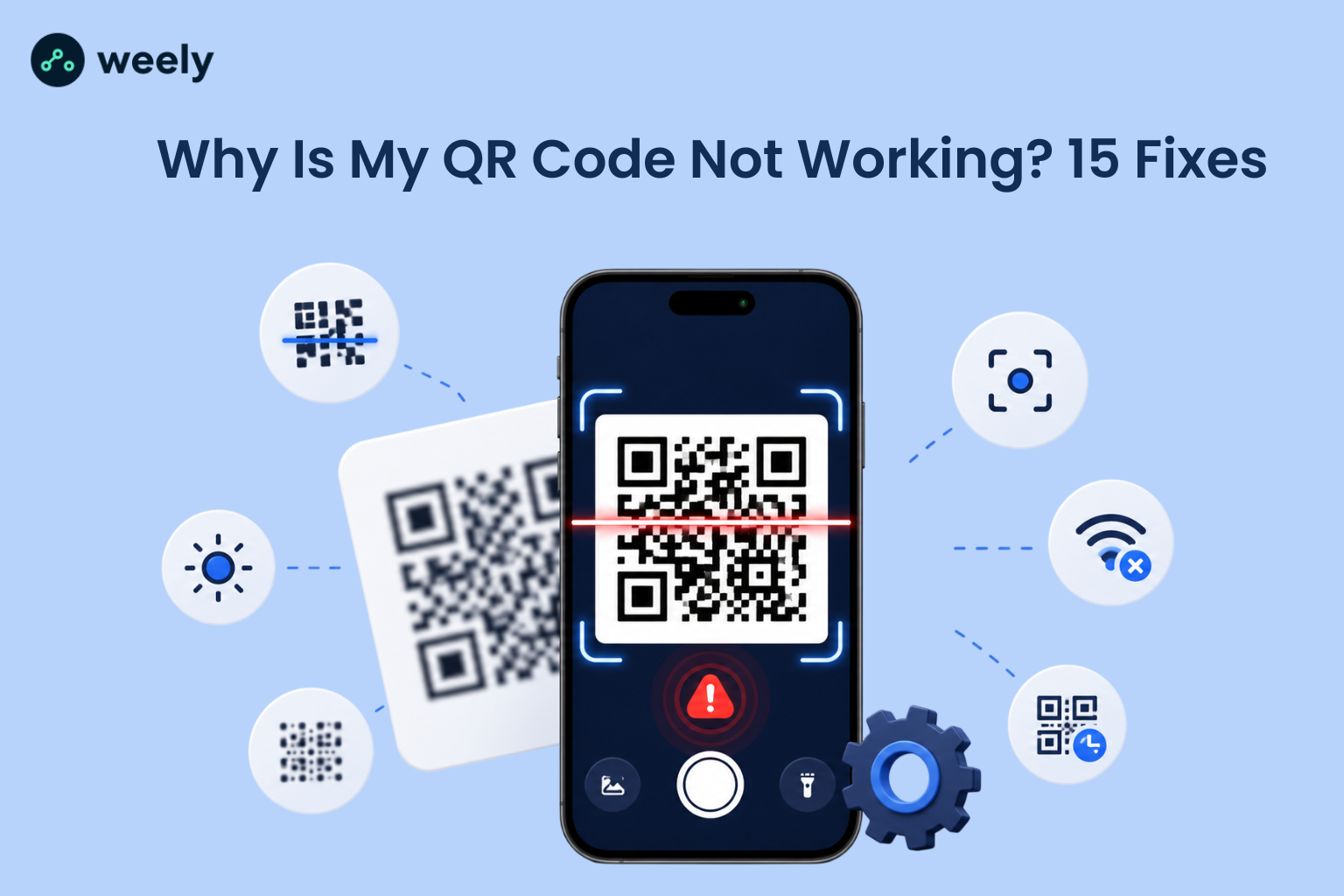
QR codes are all over the place in 2026 and the numbers prove it. In the United States alone, more than 102.6 million people will scan a QR code this year. 44% of consumers scan a QR code at least once a week or every day. With such high adoption rates, a QR code not working isn't just a minor annoyance; it could mean lost customers, missed payments or a broken first impression. The good news is, if your QR code isn’t scanning, the fix is almost always simple. In this guide, we walk you through the 15 most common reasons why a QR code isn’t working and how to fix each one.
Why Do QR Codes Stop Working? (Common Causes)
A QR code is just a pattern of black, and white squares that a camera can scan and turn into information, such as a link to a website. If any part of that pattern is too small, too small or out of alignment, the scanner won’t be able to read it correctly. That's when you end up with a QR code not working, even though it looked fine on your screen.
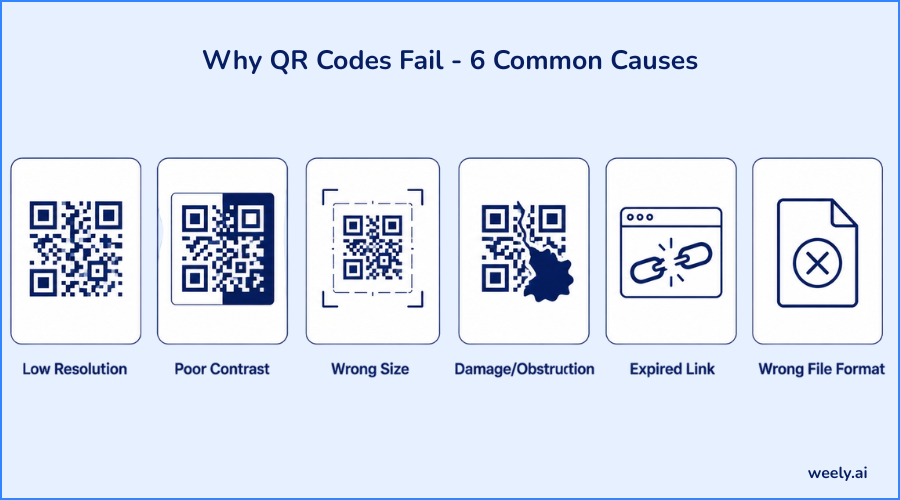
The most frequent reasons why a QR code may not work are:
- Low image resolution or pixelation when the code is compressed, resized, or exported poorly
- Poor color contrast between the code and its background
- Incorrect size for the distance people will be scanning from
- Damage or obstruction, such as folds, stains or design elements covering part of the code
- An expired or deactivated dynamic link behind the code
- The wrong file format used when sending the code to print
Knowing these causes makes it so much easier to diagnose your own QR code not working and applying the right fix instead of guessing. It also helps to know how QR codes are typically used across campaigns, since a code built for packaging, flyers, or social posts often needs different sizing and testing than one meant for a screen.
15 Fixes for a QR Code That's Not Scanning
Each fix is for a specific step in the scanning process, from what the code looks like to where it takes you once it’s scanned. Start with the code's design and print quality, then the destination link, as most scanning issues stem from these two areas. If you're generating your codes with a tool like the QR code generator, several of these issues can be avoided automatically.
1. QR Code Too Small to Scan
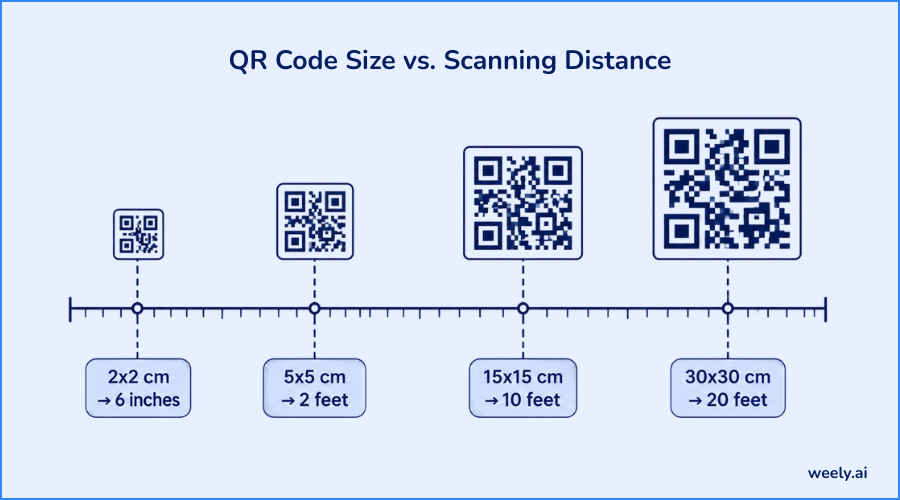
One of the most common reasons for a QR code not scanning is size. Generally, a QR code should be a minimum size of 2 x 2 cm (about 0.8 x 0.8 inches) for close-range scanning, and it should scale proportionally with scan distance: approximately one inch of code size for every 10 feet a person will stand from it. If your QR code is too small to scan is the problem, just resize it before printing and always test the final printed version, not just the digital preview. A QR code maker that lets you export multiple sizes makes this step much faster.
2. Low Contrast Between Code and Background
The scanners need to see a sharp contrast between the dark modules and the light background to correctly read a QR code. A QR code on a busy photo, a light grey background, or a colored gradient often causes scanning failures. Follow a simple rule: dark code on a light solid background with no filters or overlays that reduce contrast.
3. QR Code Not Scanning on iPhone
If you're wondering why won't my QR code scan on iPhone, the issue is usually one of three things: the code is too small on screen, the Camera app does not have the code fully in frame or Screen Time restrictions have disabled the QR scanning feature. Go to Settings, search for “Scan QR Codes” and make sure the toggle is on. Then try scanning again in good light.
4. QR Code Not Scanning on Android
As for why is my QR code not scanning on Android, the most frequent culprits are an old camera app, a third-party scanner that hasn’t got camera permission, or a code that’s simply out of focus. Ensure your camera app is up-to-date, enable camera access in your phone's permission settings, and keep the phone steady 6 - 8 inches away from the code.
5. Blurry or Low-Resolution Print
A QR code not working after printing usually means the image was scaled up from a small file (and thus became pixelated) or printed at a low DPI (dots per inch). Whenever possible, always export QR codes as vector files (SVG or EPS) or use a high-resolution PNG of at least 300 DPI for print materials. This is most important on smaller printed items such as business card layouts where the code has very little room for pixelation.
6. QR Code Placed on a Curved or Reflective Surface
Curved surfaces such as bottles or reflective surfaces such as shiny laminate can distort the code pattern, or create glare that prevents the camera from reading it. Use matte finishes when possible, and flatten the design area, or boost the error correction level of the code to compensate for minor distortion.
7. QR Code Scans, But Displays Blank Page
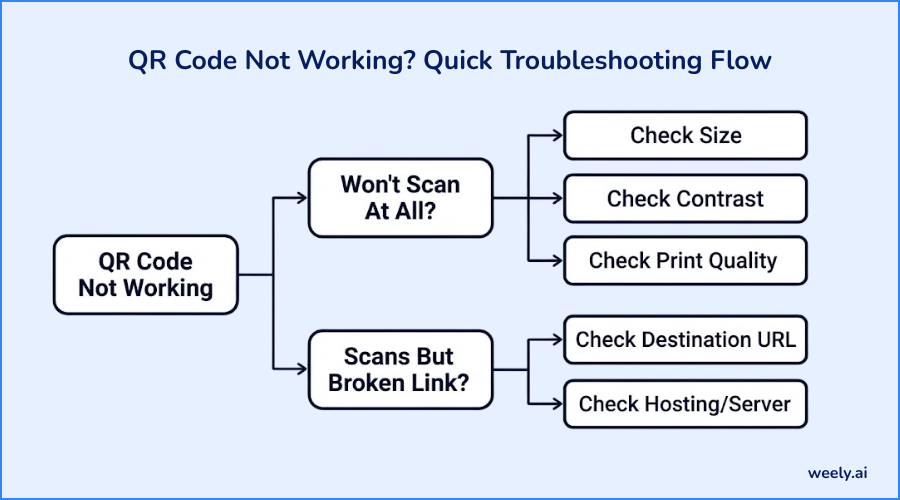
When a QR code scans but shows a blank page, then the code is working fine. The problem is on the destination side. This usually happens when a landing page is still under construction, hosted on a broken server or blocked by a firewall, or region restriction. Try loading the destination URL directly in a browser to see if it works.
8. Broken or Dead Redirect Link
A QR code link not redirecting properly is one of the most frustrating fixes because the code itself looks completely normal. This is often the result of a mistyped URL at creation, a deleted redirect, or an expired SSL certificate on the destination site. Always verify the exact URL encoded in the QR code before publishing it anywhere. Also, running the destination through a link-shortening tool first makes spotting typos easier before the code is ever generated.
9. Expired Dynamic QR Code
Can a QR code expire? Static QR codes don’t expire, as the data is permanently baked into the pattern. But dynamic QR codes require a hosted redirect. Often, many cases of QR codes not working result from a free plan or trial account that has expired, which deactivates the redirect entirely. If you are using a dynamic code, check your account status and renew or upgrade before the code hits the real world. You can completely avoid this problem by reviewing your plan details before a big print run.
10. Wrong Error Correction Level Used
QR codes include a built-in error correction feature that allows part of the code to be damaged or obscured while still scanning correctly. When your QR code has a logo, icon or decorative element in the center, you often get a QR code not working using a low error correction level. If you add design elements, choose a higher error correction level (approximately 25 - 30% redundancy). Most business QR code setups default to this higher level automatically for exactly this reason.
11. QR Code Covered by Design Elements or Logo
Adding a logo to the center of a QR code looks great, but it can block critical data modules if it's sized too large. Keep any logo or graphic to less than 20 - 25% of the total code area and always test the final design on multiple devices before publishing. Design decisions like these also affect how people react to the code once it scans; see how visual design influences scan rates for more on this balance.
12. Scanning in Low Light or Glare
Cameras need enough light to distinguish the dark and light parts of a QR code, which is why QR codes not scanning in low light is such a common complaint at events, restaurants and dimly lit retail outlets. Improve ambient lighting near the code, or increase contrast and size to compensate for lower-light environments.
13. Outdated Scanner App
One of the most common reasons is that an older camera or scanner app may not support newer QR code formats, or error correction standards, leading to a QR code scanning issue that has nothing to do with the code itself. Keep your phone’s operating system, and default camera app up to date to prevent this issue.
14. QR Code Generator Glitch
Free or overloaded tools can sometimes cause a QR code generator not working properly to generate a corrupted or incomplete file. If a freshly generated code fails immediately, regenerate it from scratch, download it again, and test it before using it anywhere public-facing. You can check that a new export is printing properly with an online QR code scanner before it even goes to a printer.
15. No Internet Connection When Scanning
Finally, the scanning device still needs an active internet connection to load the website, video or app link if the QR code leads to one. A code that scans instantly but never opens anything is often simply a connectivity issue rather than a broken QR code. This is worth verifying whether codes are sent using messaging apps like WhatsApp that are likely to drop connections.
How to Test a QR Code Before Printing or Publishing
Testing takes less than two minutes and prevents almost every QR code not working scenario before it gets to your audience. Do this:
- Generate the QR code and download the final file.
- Test it on both an iPhone and an Android phone.
- Test it in different lighting conditions, including low light.
- Confirm the destination link loads correctly and matches your intended page.
- Check the page's load speed on mobile data, not just Wi-Fi.
Skipping this step is the number one reason businesses discover a QR code not working only after it’s printed on thousands of fliers, menus or packages. It's also worth looking at how the same code performs in different placements; for example, QR codes used on various platforms don't always behave the same way as ones printed on paper.
Best Practices to Make Sure Your QR Code Always Works
A few consistent habits eliminate most future scanning issues:
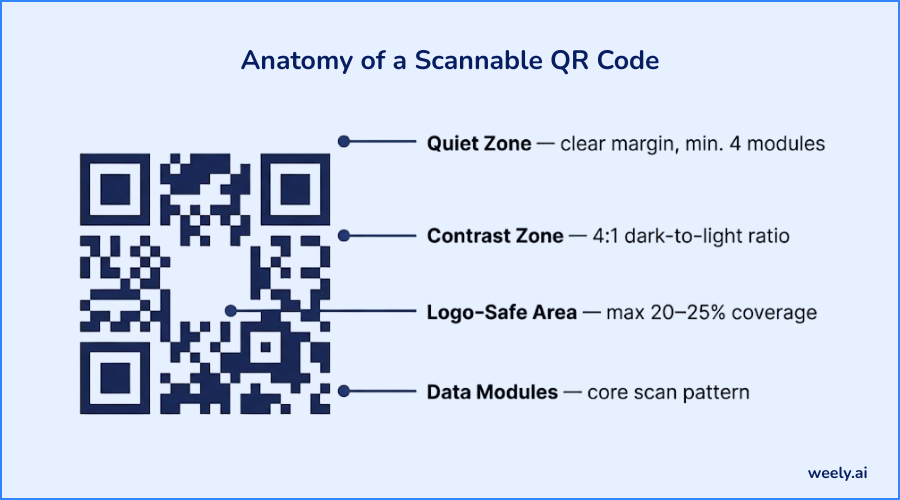
- Size-to-distance ratio: Roughly 1 inch of QR code size for every 10 feet of expected scanning distance.
- Contrast ratio: Keep at least a 4:1 contrast ratio between the code and its background.
- Quiet zone: Leave a clear white margin of at least 4 modules around the code with no text, images, or borders touching it.
- Use dynamic over static codes: Dynamic QR codes let you fix a broken destination link without reprinting anything, which is one of the fastest ways to resolve a QR code not working issue after the fact.
When you pair it with a UTM tracking tool, it’s much easier to see which placements are actually driving scans if you’re running multiple campaigns through the same code. And if the destination is a collection of links rather than a single page, routing the code to a mobile landing page instead of one fixed URL tends to hold up better over time.
Final Thoughts
A QR code not working is rarely a mystery once you know what to check. Usually it’s a matter of size, contrast, print quality or a bad link on the far side. Test each QR code on a few devices before it goes live and follow the sizing and contrast best practices above, and you’ll avoid the vast majority of scanning failures before they ever reach your audience.
Some destination types, like contact-sharing QR codes, have their formatting quirks that you'll want to understand if you plan on using them often. If you'd like to build and test your next QR code from scratch, you can create an account and generate one in a few minutes.
Frequently Asked Questions
Why is my QR code not scanning?
A QR code not scanning is usually caused by low contrast, small size, poor print resolution, and a camera app that isn’t focusing properly. Test the code in good lighting, from a normal scanning distance. This test will tell you which of the two factors is affecting it.
Why won't my QR code open a link?
The code scans, but the link does not open. The QR code is working, but the destination URL is broken, expired, or blocked. Check the specific link in a browser to make sure that it is active, and working properly.
Can a QR code expire?
Static QR codes do not expire because the data is embedded directly in the pattern. If the hosting account, subscription or redirect service behind dynamic QR codes is deactivated or expires, the codes will stop working.
What is the best size for a QR code to work properly?
A good baseline should be at least 2 x 2 cm for close-up scanning, increasing in size with scanning distance: roughly 1 inch of code for every 10 feet of distance.
How do I know if my QR code is broken?
Use two different phones to scan it in normal lighting. If it won’t scan or it spits out a blank page or error, it could be any of the 15 issues listed above.
Do QR codes need the internet to work?
The QR code can be scanned without the internet, but if it links to a website, video or app, then the scanning device needs to be connected to the internet to be able to load the destination.
How do I fix a QR code that scans but shows an error?
This is almost always an issue with the destination page, and not the code itself. Verify the URL for correctness and the page for live status and for server, or SSL issues preventing access.