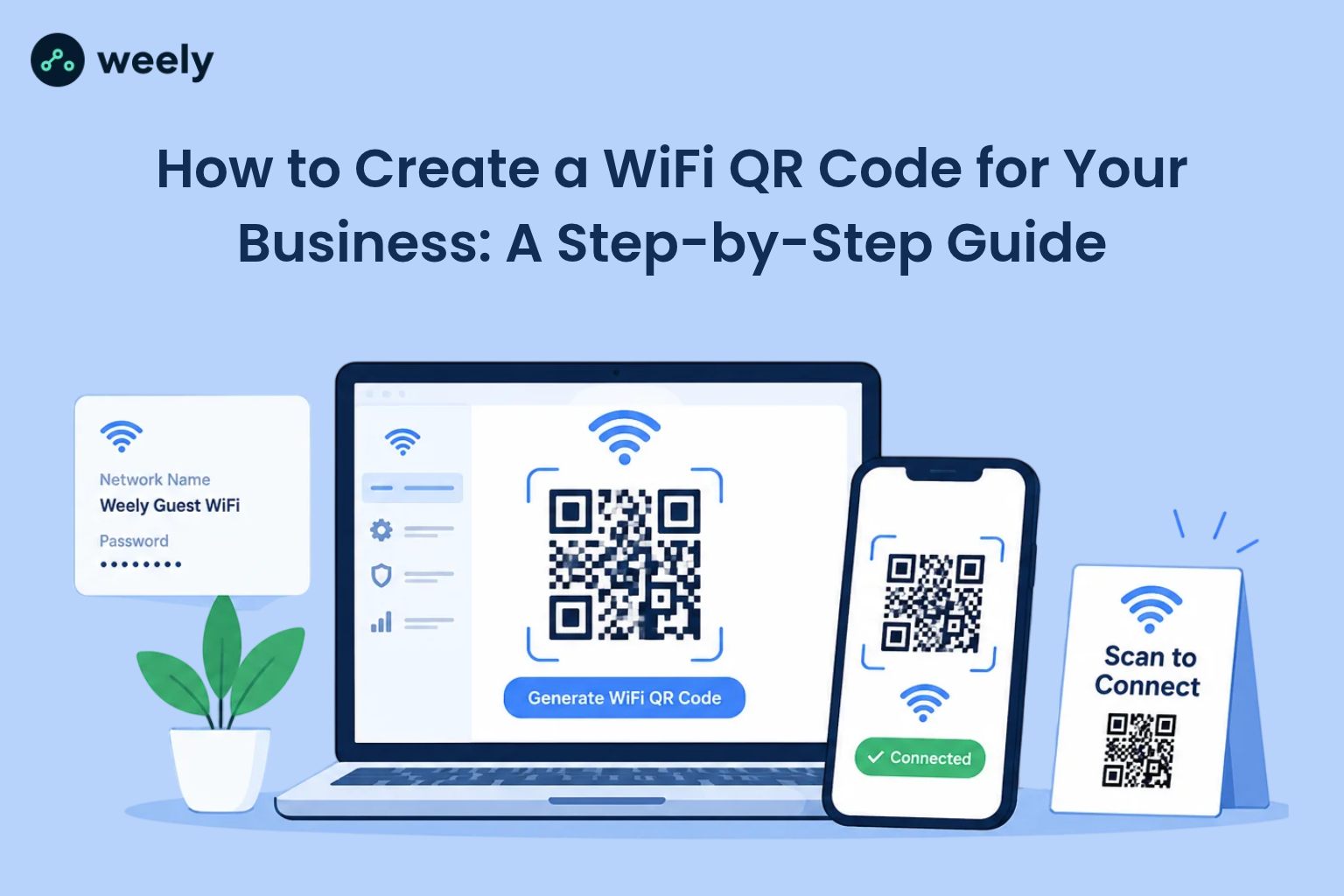
Typing a long WiFi password on a phone is slow, and customers get it wrong all the time. A WiFi QR code for business fixes this problem in one scan. Your customer opens the camera, points it at the code, and taps once to join. There is nothing to type, nothing to spell out loud, and nothing for your staff to repeat all day.
People already know how to scan. An estimated 99.5 million US smartphone users scanned QR codes in 2025, and eMarketer projects that number will reach 102.6 million in 2026. Customers also want WiFi when they visit you. One survey of restaurant, cafe, hotel, and pub customers found that 90% expect free WiFi, and 67% said they have picked a venue because it offered it. Put those two facts together and the message is clear: make your guest WiFi QR code easy to find and easy to use.
This guide explains the complete process of creating a WiFi QR code, from the initial setup to the final result. You will see how to test it on iPhone and Android, where to place it, how to design a clean sign, how to keep your network safe, and how to fix the most common problems. You do not need any technical skills. If you can copy and paste a password, you can build a WiFi QR code for business use in about two minutes.
What Is a WiFi QR Code?
A WiFi QR code is a square barcode that stores your network details. When a phone scans it, the device reads the stored details and prompts the user to join the network. The customer never sees the password and never has to type it. It is the same idea as a key card for a hotel door: the guest holds it up, and the door opens. For a shop, cafe, or office, this becomes a WiFi QR code for business that works all day without any help from staff.
How does a WiFi QR code work?
Your phone camera looks at the pattern inside the square and turns it into plain text. For a WiFi code, that text follows a standard format that modern phones understand. The phone displays a message like "Join network?" and joins the network after the customer taps the confirmation message displayed on their phone. This is how a QR code to connect to WiFi works on current iPhone and Android devices.
The scan happens on the phone itself. This means the phone does not need an internet connection to read the code, which is helpful because the whole point is to get the customer online. The code only holds text, so there is no app to install and no account to create. This makes a WiFi QR code for business very simple to roll out across a whole shop.
What information does a WiFi QR code contain?
A WiFi password QR code holds only the details a phone needs to join your network. Here is what sits inside it:
- Your network name, also called the SSID
- The security type, such as WPA2 or WPA3
- The WiFi password, if your network uses one
- An optional setting for hidden networks
Because all of this is stored inside the code, anyone who scans it can read the same details. Keep that in mind, because it shapes how you should set up your guest network. This is true for every WiFi QR code for business, so plan your guest network first. We will discuss this topic in more detail in the security section later in this guide.
WiFi QR codes vs. regular QR codes
A regular QR code usually opens a web page, a digital menu, or a payment link. A WiFi code does something different because it connects the phone to a network. You may also see people search for QR internet. That phrase can mean different things, but for a shop or cafe it usually points to this kind of code: a fast way to get visitors online.
There is another difference worth knowing. A regular code can be a dynamic code, which uses a short link that you can edit later. Certain tools support a dynamic WiFi QR code, whereas a standard WiFi code remains static, with the network details embedded directly in the QR pattern. If you want to understand the difference in depth, this guide to static vs. dynamic QR codes explains when each type makes sense.
How to Generate a WiFi QR Code for Your Business
You can easily create a WiFi QR code in about two minutes with the help of a reliable WiFi QR code generator. For business purposes, choose a tool that allows you to select the security type, export high-resolution files, and customize the code with your brand colors and logo. A QR code generator for your brand is a good place to start because it keeps the whole process in one place.
Here are the six steps to build your WiFi QR code for business. Each step can be completed in under a minute, and following the instructions in the correct order from beginning to end is important.
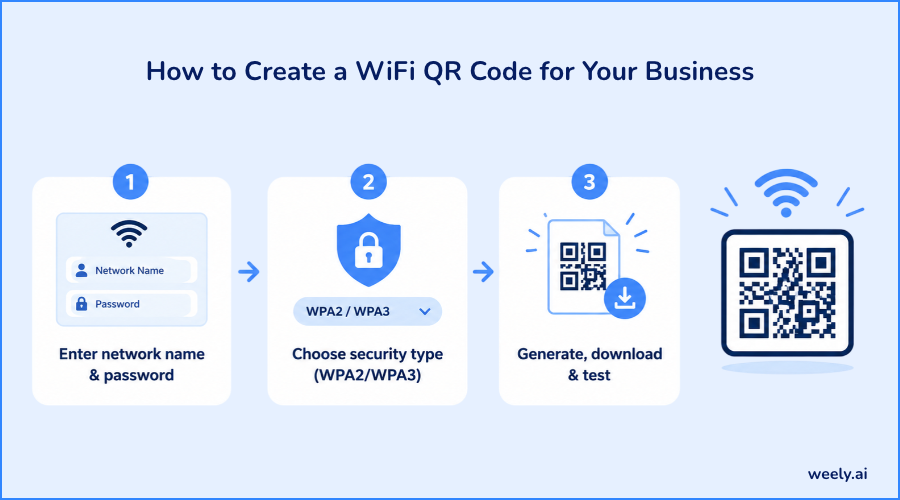
Step 1 - Choose your guest WiFi network
First, decide which network customers will join. If you can, use a separate guest network, not your main office network. This keeps your staff devices, payment systems and private files apart from visitors. Most modern routers let you turn on a guest network from the settings page.
Give the guest network a friendly name that customers will recognize. For example, "CafeBloom Guest" is clearer than a string of random letters, and numbers. A simple name also helps customers confirm they joined the right network after scanning.
Step 2 - Enter your network name (SSID)
Type the network name exactly as it appears on your router to ensure accurate results. Capital letters, spaces and symbols all matter. If one character is wrong, the phone will not find the network, and the connection will fail. The safest way is to copy the name from your router settings, and paste it into the generator.
Step 3 - Select the correct security type
Pick the security type your router uses. Most networks today use WPA2, or WPA3. Older routers may rely on WEP, while open networks operate without any security protection. If you choose the wrong type, the phone will fail to join.
If you are not sure what your router uses, open the router settings page and look under the wireless or security section. Choosing WPA2 or WPA3 for your guest network is the best practice, because both protect the connection between the phone and the router.
Step 4 - Enter the WiFi password, if required
Enter the guest WiFi password exactly as configured, keeping in mind that uppercase and lowercase letters matter. For example, "Welcome2026" differs from "welcome2026". If your guest network is password-free, simply leave the password field empty.
For a secure WiFi QR code, always use a strong password on the guest network, even though customers will never need to type it. A long password made of several random words is easy to store in a code and hard to guess.
Step 5 - Generate and customize your QR code
Select the generate button and allow the tool a moment to display your QR code preview. Most tools let you customize WiFi QR code colors, add a logo, or change the frame around the code. Keep the design simple. Using a dark QR code against a light-colored background generally provides the best scanning results. Do not make the pattern too decorative, because heavy styling can stop phones from reading it.
If you want to add your logo, keep it small and centered. A small logo is usually safe, but a large one can hurt scan quality.
Step 6 - Download and save the QR code
Save the QR code as a PNG for convenient on-screen use, or choose SVG or PDF format for printing. Save a copy in a safe folder, and name it clearly, for example "guest-wifi-qr-main-store". You will need it again when you want to reprint your sign later, and a clear file name saves time when you manage more than one location.
Not sure which plan you need to save and manage your codes? You can check QR code plans and pricing before you decide.
How to Test Your WiFi QR Code Before Sharing It
How do you connect to WiFi using a QR code? Open your phone’s camera, aim it at the QR code, and select the notification that pops up on your screen.. That is all a customer needs to do. As the business owner, you should run the same test yourself before you print anything. A code that fails in front of customers looks worse than no code at all.
Scan the code using an iPhone
Open the Camera app and point it at the code. Hold the phone steady for a second. A banner will appear at the top of the screen. Tap it, then tap Join. This is the simplest way to use a QR code to connect to WiFi on an iPhone, and it works on any recent iOS version.
Scan the code using an Android device
Open the camera app or Google Lens, and point it at the code. On most recent Android phones, a prompt appears asking if you want to join the network. Tap it to connect. If your phone does not read WiFi codes from the camera, look for a built-in QR scanner in the quick settings panel or inside the WiFi menu.
Check the network name, security settings and connection
After you join, open a web page to confirm the internet works. Check that the phone joined the right network, not a similar one nearby. Then test with a second phone, ideally a different brand, because some older phones behave differently.
If both phones connect, your code is ready. If not, go back to the generator and check the network name, security type, and password. In most cases, one wrong character is the cause. A tested WiFi QR code for business saves you from awkward moments later.
Benefits of WiFi QR Codes for Businesses
A business WiFi QR code saves time for customers and staff. It also makes your place feel modern and helpful. Here is how a WiFi QR code for business adds value day to day.
Make guest WiFi access easier for customers
Customers connect in seconds. They do not need to ask for help or squint at a tiny password written on a receipt. This is why a WiFi QR code for customers is now common in cafes, salons, clinics, and shops. The easier the connection, the more likely people are to use it, and the more they enjoy their visit.
Reduce repeated password requests
Can you share WiFi without telling customers your password? Yes. The code carries the password inside it, so staff do not need to say it out loud. This also helps with privacy, because the password does not get written on a whiteboard or shared in a chat message.
Think about how many times a busy cafe team answers the same question in one day. Every time a barista stops to read out a password, someone else waits in line. A scan-to-join sign removes that interruption.
Improve the customer experience
Fast WiFi access sets a good first impression. Guests who connect easily tend to stay longer, which can mean another coffee, another drink, or another order. Customers also notice small details. A clean sign with a clear message tells them you care about their comfort. A WiFi QR code for business is a small touch that guests remember.
Offer convenient access at multiple locations
If you run more than one site, you can make a separate code for each location. Each one can have its network name, and password. You can also keep the same look across all locations so your brand stays consistent.
A good rule is to name your files by location, so your team always prints the right sign for the right store. This small habit prevents mix-ups when passwords change at one site but not another.
Where Should You Display a Business WiFi QR Code?
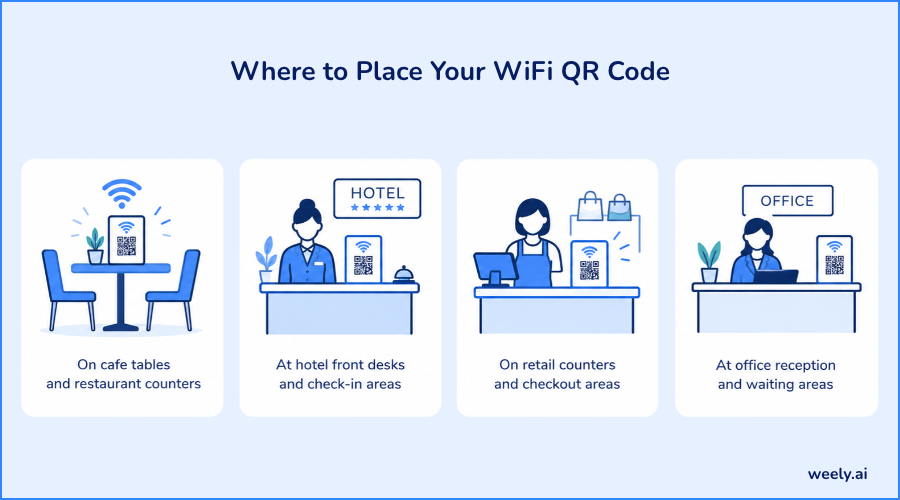
Place your code where people already look while they wait, sit, or relax. The best spot is at eye level and close to where customers spend their time. Walk through your space as a customer would and note where people pause. These are the most effective locations to display your WiFi QR code in a business setting.
Restaurants and cafes
A restaurant WiFi QR code works well on table tents, menus, and near the register. Guests can scan while they wait for their food. If you run a dining business, see how QR codes for restaurants are used for menus, ordering, and guest WiFi. You can also place a printed WiFi QR code alongside your menu for easy access. Here is an example of a QR code on menus that fits this idea.
Keep one on the counter for people who stand in line. Cafes with many solo visitors often get the best results by placing a small sign on every table, because remote workers look for WiFi as soon as they sit down.
Hotels and hospitality businesses
A hotel guest WiFi QR code fits best at the front desk, on room cards, and near the elevators. It also helps in meeting rooms, lounges, and lobbies. Guests can get online right after check-in without calling reception, which cuts down on phone calls and desk questions. Hotels can learn more from this page on QR codes for hotels and resorts.
A short welcome card in the room with the scan instructions works very well. Add a line in two languages if you host many international guests.
Retail stores and waiting rooms
Shops, salons, clinics, and gyms all have idle moments. A small sign near the seats or counter gives customers an easy way to pass time online. For stores that want more ideas, here is how QR codes for retailers can support in-store service.
In a waiting room, place the sign near the chairs, not on the far wall. People look down at their phones while they wait, so a sign at seat height is easy to notice.
Offices and event venues
Offices can place codes in reception and meeting rooms for visitors. This saves the front desk from sharing the password again and again. Event venues can print codes on banners, badges, or programs so attendees connect without crowding the help desk. If you plan events, take a look at QR codes for event management for more ideas.
Large venues should use a bigger code and place several signs in different areas. A single sign at the entrance is not enough when hundreds of people arrive at the same time.
How to Design a Printable WiFi QR Code Sign
Download a high-resolution file, place it on a clean layout, add a short message, and print at a size people can scan from a short distance. A good WiFi QR code sign is simple, bright, and clear. It should take a customer less than three seconds to understand what to do. Every WiFi QR code for business signs should follow this rule.
Add a clear call to action
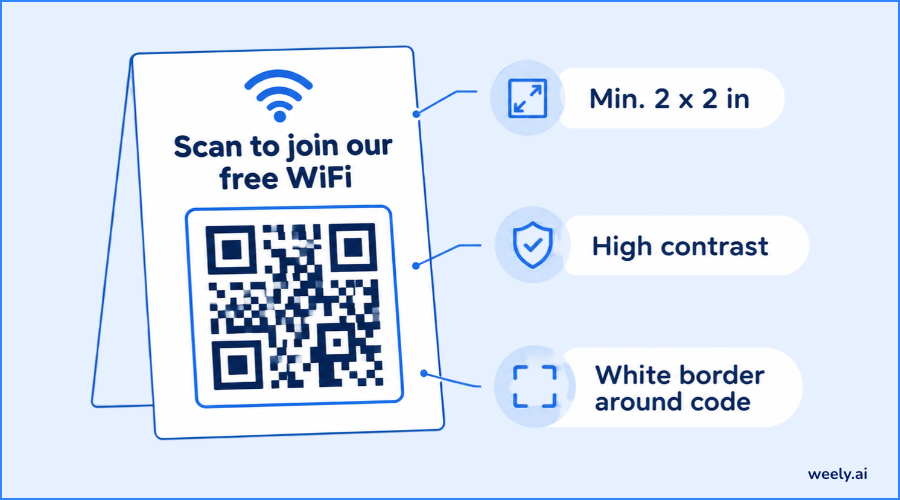
Tell people exactly what to do. A simple message like “Scan to connect to our free WiFi” makes the purpose clear to guests. Add a small phone icon if you like. Do not use long sentences, because most people read a sign at a glance. Put the message above or below the code, not far away from it.
Choose a readable size and strong contrast
Aim for a code at least 2 by 2 inches (about 5 by 5 cm) for close scanning on a table. Make it larger for signs people read from farther away. As a simple rule, the farther away the viewer, the bigger the code should be. For printed pieces, see how QR codes on flyers are sized and placed on the page.
Use a dark code on a light background. Avoid glossy paper under bright lights, because glare can block the scan. A matte finish is a safer choice for counters and tables.
Include your brand identity without obscuring the code
Customize the area around the code with your brand logo, colors, and fonts for a consistent look. If you place a logo inside the code, keep it small. Too much design in the middle can break the pattern. You can also use sticker labels for small spots such as the side of a till or a window. See how QR codes on stickers and labels work for small surfaces.
Here is a quick checklist for your sign:
- A short, friendly call to action
- A large, high-contrast code with white space around it
- Your logo or brand color outside the main pattern
- The network name in small text as a backup
Print and test the sign before displaying it
Print one copy first. Scan it with at least two different phones from the distance customers will use. If it fails, make the code bigger or change the paper. Only then print the full batch.
For larger spaces, you can also show the code on a screen or banner. Look at examples of QR codes on banners and QR codes on digital signage to see how size, and placement change from one format to another.
Are WiFi QR Codes Secure?
Is a WiFi QR code safe? It can be if you set it up with care. The code holds your password in a form that any scanner can read. That means anyone who scans it can see and use your network details, so the key is to protect what the code connects to. Think of your WiFi QR code for business as a copy of your front door key. You would not hand a copy of the key to your office safe to every visitor.
Protect your main business network
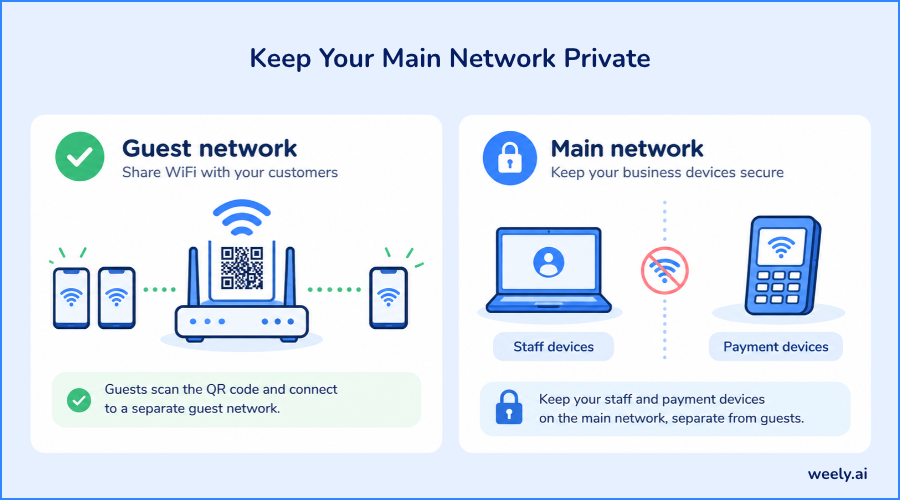
Never put your main network on a public sign. Your point-of-sale system, staff laptops, security cameras, and private files should live on a separate network. Treat your main network like a locked door. Only the guest network should appear on any printed code.
Use a separate guest network when appropriate
A guest network gives visitors internet access only. They cannot reach your internal devices. This is the safest way to run a guest WiFi QR code. Many routers also let you limit speed and set a time limit for guests, which keeps one heavy user from slowing everyone else down.
For broader safety tips on how codes are used by companies, read this article on QR code security for businesses. It covers how to avoid fake codes and how to keep your codes safe from tampering.
You should also check printed signs now and then. Someone could place a sticker with a different code over yours, so look at your signs when you open each week.
Understand what happens when you change your password
Your WiFi QR code does not update on its own. If you change the password or the network name, the old code will stop working. You will need to create and print a new one. Plan for this when you choose how often to change passwords. A calendar reminder every three months works well for most small shops.
Review access and security settings regularly
Check your router every few months. Use WPA2 or WPA3, keep the router software up to date, and change the guest password when staff leave or when you notice odd activity. A good habit is to review it each quarter and replace the sign whenever you change the password.
Common WiFi QR Code Problems and How to Fix Them
Why is my WiFi QR code not working? Most problems come from a wrong detail, a poor print, or an old password. The good news is that each one has a simple fix. For a wider list of causes that apply to every kind of code, see this guide on what to do when a QR code is not working.
The QR code will not scan
Check the size, contrast, and lighting. Make sure the code is flat, clean, and not covered by glare or a damaged cover. Also check that the phone camera lens is clean, and focused. If it still fails, regenerate the code at a higher resolution and print it again.
Try scanning from different distances. If the code only works up close, it is too small for the spot where you placed it.
The phone cannot connect to the network
Recheck the network name, security type, and password you entered. Even one wrong letter will stop the connection. Make sure the router is on, and the guest network is turned on. Also check whether your router limits the number of connected devices, because a full network will refuse new guests.
The WiFi password or SSID has changed
If either one changed, the old code is no longer valid. Generate a new code with the new details, then replace every printed sign. A simple way to avoid missing one is to keep a list of where each sign is placed.
The printed QR code is too small or blurry
Use a vector file, such as SVG or PDF, for print. Avoid stretching a small image, because it turns blurry at the edges. Print at a higher quality setting and keep a clear white border around the code. A white border, often called the quiet zone, helps cameras find the edges of the pattern.
Conclusion
Setting up a WiFi QR code for business takes only a few minutes. Choose your guest network, enter the name, security type, and password, then generate, download, and test the code. Print a clean sign, place it where customers wait, and keep your main network private. When the password changes, replace the code.
Ready to try it? Sign up Weely AI and build your WiFi QR code for business today, then print it and put it on your counter.