QR code use is growing fast. In the US alone, the number of smartphone users scanning QR codes was projected to reach 99.5 million by 2025, up from 83.4 million in 2022. In countries such as Malaysia, more than 66% of mobile users already scan QR codes regularly. Business cards are beginning to embrace the trend, and QR codes on business cards are now one of the easiest ways to turn a simple paper card into a smart, trackable networking tool.
Quick Answer: A QR code business card is a traditional or digital business card embedded with a scannable code. Someone scans using their phone camera and instantly your contact details, digital profile or portfolio opens. No typing, no app needed. It saves time, looks modern and allows you to update your information without reprinting a single card.
This guide covers QR codes on business cards: what they are, why you need one, where to link it, how big to make it, where to place it, and how to avoid mistakes.
What Is a QR Code Business Card?
A QR code business card is a card with a small square code printed or displayed digitally that can be scanned by a smartphone camera to open a link. This might be a link to your contact details, digital profile or website. A regular business card with a QR code becomes a quick paperless way to share information, especially if you create it with a business card maker for that purpose.
A business card QR code isn’t limited to a few lines of print on a plain paper card. Share your full contact card, a portfolio, social links or a booking page all from one small code.
How QR Codes Work on Physical Cards
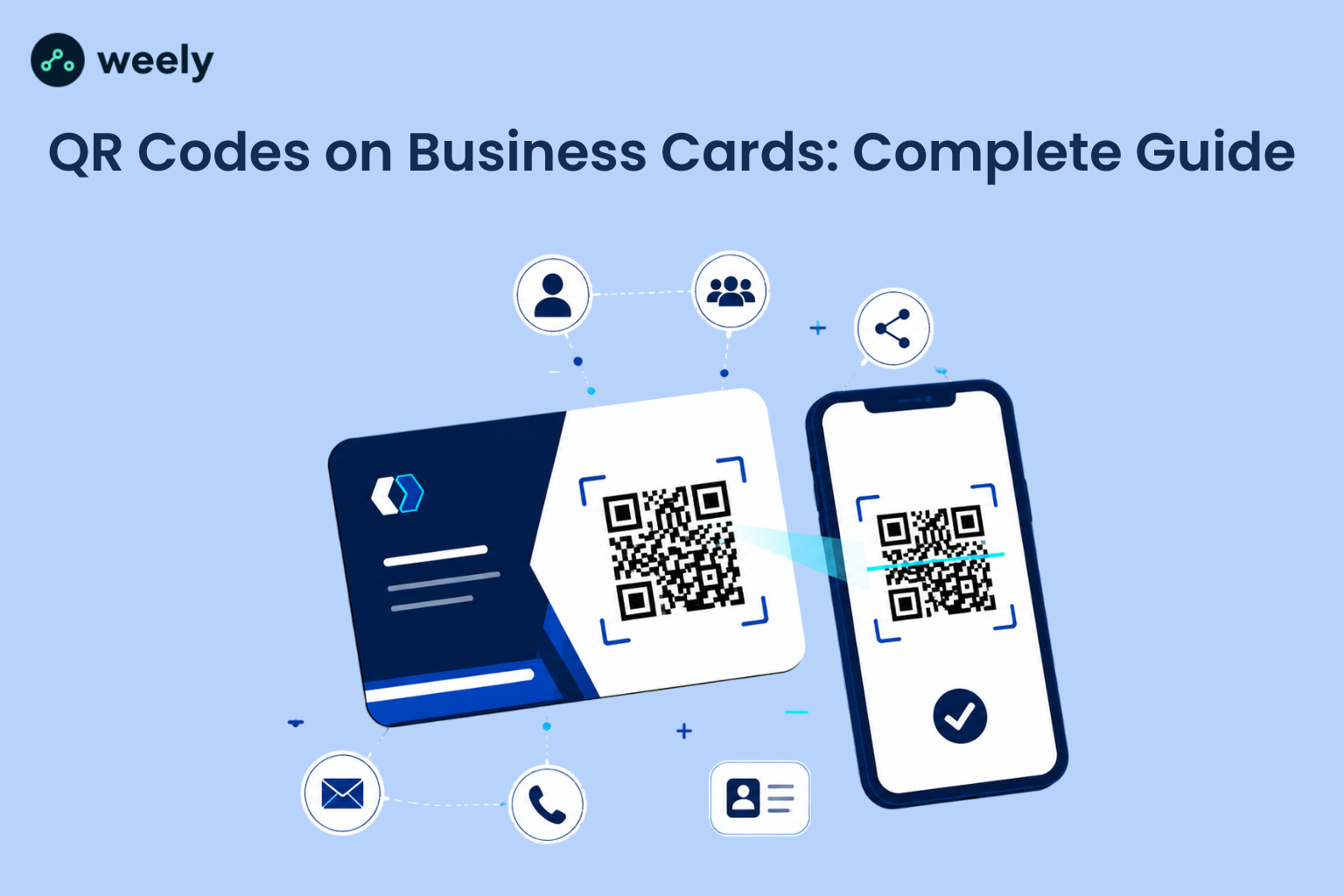
Point a phone camera at the code and it scans a pattern of black and white blocks, decoding a web address concealed within. Then the phone will ask you to open that link. Most phones these days have it built into the camera app, so you don’t need a separate scanning app.
Digital vs Physical QR Business Cards
A physical card is a printed QR code on paper or plastic. You have a digital business card on a phone or a web page, with a QR code that people can scan directly from your screen. Many professionals use both today: a printed card for in-person meetings and a digital business card QR code, built with a digital business card maker, for virtual introductions.
Why Put a QR Code on a Business Card?
A QR code converts a business card from something people look at once to something they actually use. They scan it and it's done, so you don't have to type out your number or hunt for your email later. The primary purpose of having QR codes on business cards is to make them more useful. After people get used to it, going back to a plain card feels slow.
And then there’s the practical side. Phone numbers change, job titles change, and companies rebrand. If you have a printed card, any of that means throwing out your old stock and ordering new ones. If you are using a dynamic QR code via a QR code tool, then the card doesn't change, but where it points to can change, so it avoids that problem altogether.
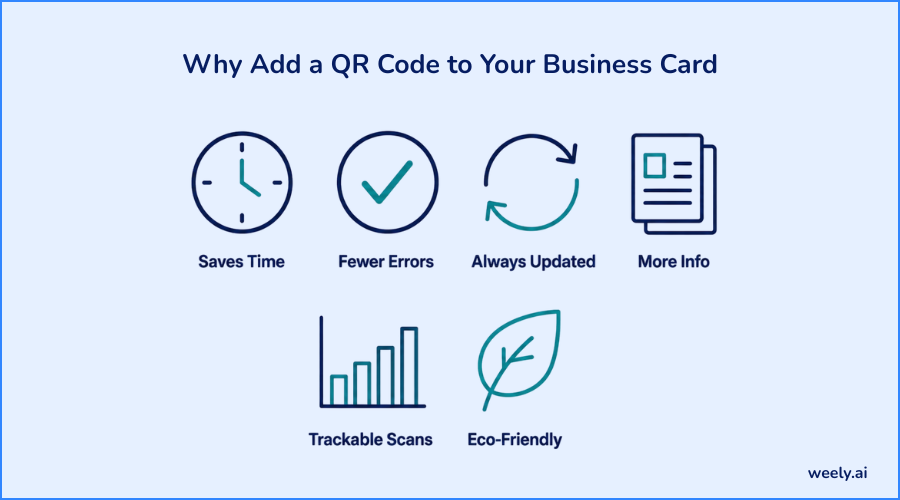
Here’s what you really get when you add a QR code business card to your kit:
- Saves time - One scan and your contact info is already on their phone.
- Cuts down on errors - Nobody's squinting to type your email correctly at a loud networking event.
- Stays current - Swap the link behind a dynamic code any time; no reprinting needed.
- Room for more - Send people to a full portfolio or resume instead of cramming everything onto a 3.5x2 inch card.
- You can see who's scanning - Actual data on when and how often your card gets used.
- Less paper waste - One card, unlimited content behind it.
What Should Your QR Code Link To?
When you put QR codes on business cards, the code should link to whatever helps the other person take the next step with you fastest - usually your digital business card, a vCard file, your website, a portfolio, LinkedIn, or a booking page.
Digital Business Card
A digital business card QR code opens a page optimised for mobile devices that contains your name, job title, company, contact buttons and links - all in one location. It is one of the most popular options since it eliminates the need for a paper card completely, can be updated anytime and can be set up in minutes with a digital business card guide.
vCard
A vCard QR code lets you save your contact details straight into the other person’s phone contacts app in one tap. It is the fastest option if your only goal is to make sure people can call or email you later.
Website
Linking to your website is a good idea if you have a business and want people to check out your services, pricing or company story after the first meeting. Many use a link shortener to shorten this link before they make it a QR code so it stays neat and manageable.
Portfolio
For designers, photographers, and other creatives, linking the QR code to a link in a bio page lets people see actual work samples instead of just a job title, all from a single link.
For corporate types and job seekers, a QR code linking to your LinkedIn profile is useful to grow your network right after an event or meeting.
Booking Page
If you do consultations, coaching or sales calls, a link to a booking page allows someone to book time with you instantly, with no back-and-forth emails required, a tactic often used with event QR codes at conferences and meetups.
Static vs Dynamic QR Codes
The difference between static vs dynamic QR codes is simple. A static code cannot be changed after printing. A dynamic code can be updated anytime, even after your cards are already printed.
Choosing between static and dynamic QR codes on business cards affects how easily you can update your information later. The static QR code is usually free to generate but can’t be edited and has no scan tracking, so it’s better for one-time, permanent links. A dynamic QR code is usually a small cost, but it can be edited after printing and it shows scan tracking data, which makes it the better fit for business cards and other marketing materials.
In a business card QR code generator, dynamic QR code is a better choice in almost all the cases. Flexibility lets you switch jobs, change your phone number or see how many people scanned your card without printing new cards.
What Size Should a QR Code Be on a Business Card?
A QR code on a standard business card should be at least 0.8 x 0.8 inch (about 2 x 2 cm) to scan reliably at a normal distance. Smaller codes often don’t scan at all, particularly in low light or when more than a few inches away. Getting the size right is one of the most important steps in designing QR codes on business cards.
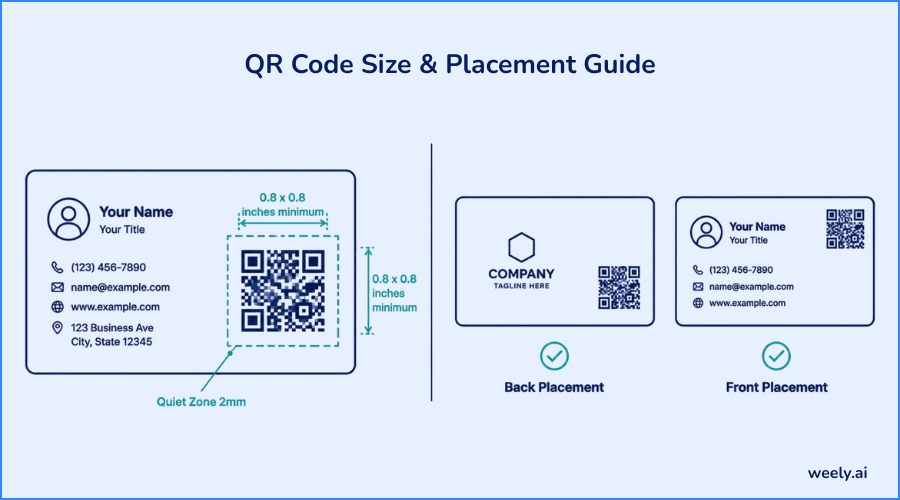
Remember the rules for size and spacing:
- Minimum size: 0.8 x 0.8 inches (2 x 2 cm)
- Leave a quiet zone (blank white space) of at least 2 mm around the code
- Avoid stretching the code into a rectangle; always keep it square
- Test the printed size before ordering a full batch of cards
Where Should You Put the QR Code?
Put the QR code where it doesn’t clash with your name and contact details, usually on the back of the card, or in a corner of the front. One of the easiest ways to make QR codes on business cards easier to scan is proper placement, whether the card is for business networking or personal QR code use.
Front vs Back Placement
The QR code is located on the back, keeping the front clean and focused on your name, title, and company. This is the most common approach on a modern business card with a QR code. If you want people to scan it right away without flipping the card over, putting it on the front (usually in a corner) works well.
Placement Mistakes to Avoid
- Placing the code too close to the card's edge, where it can get cut or folded
- Printing it over a busy background image, which reduces scan reliability
- Making it too small to save space
- Covering part of the code with a logo or text
How to Design a QR Code That Scans Reliably
A QR code will scan dependably if it has good contrast, is large enough and is not obscured in any way over its pattern. Business card QR codes are designed to scan reliably in dim light or at an angle. Here’s how to design a QR codes on business cards that will always work:
- Use dark code on a light background; black on white has the highest scan success rate.
- Keep the minimum size rule: at least 0.8 x 0.8 inches.
- Choose a higher error correction level if you plan to add a small logo in the center.
- Avoid glossy, or reflective card finishes that can cause glare during scanning.
- Leave clear white space around all four sides of the code.
- Test the code on multiple phones before printing the full batch; you can check the result using a QR code scanner.
What Should You Write Next to the QR Code?
A short instruction next to the code tells people what to expect and increases the chance that they will actually scan it. Without a prompt, some people simply skip it.
Simple options that work well:
- Scan once and keep my contact details handy
- Tap to open my digital profile
- Connect with me effortlessly by scanning here
- Browse my projects, skills, and professional work
- Schedule a conversation with a quick scan
Keep it to a few words in a small, readable font and placed directly below or beside the code.
How to Create a QR Code for a Business Card
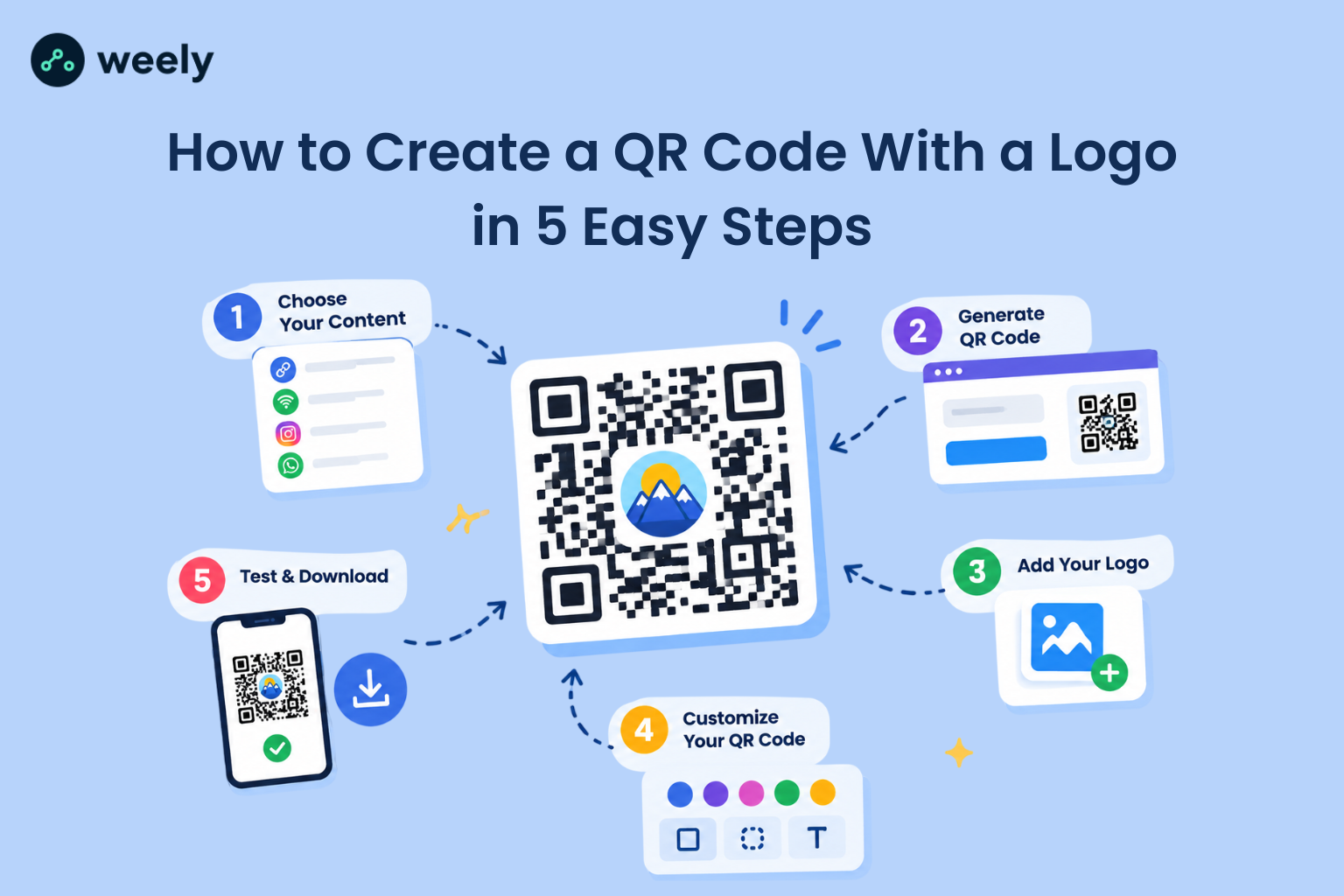
You can use a QR code generator or a dedicated business card tool to create a QR code for business card use; it’s a simple process. Here’s a simple breakdown of the process, step by step:
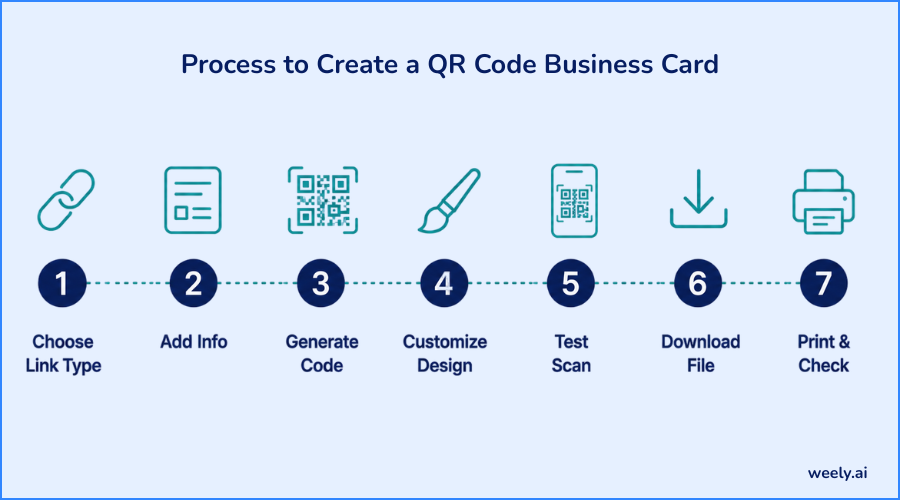
- Choose your link type: Decide if you want a vCard, digital business card, website, or booking page.
- Enter your information: Add your name, phone number, email, and any links you want included
- Generate the QR code: Use a business card QR code generator to create the scannable image
- Customize the design: Adjust colors and add a small logo if the generator supports it (while keeping strong contrast)
- Test the code: Scan it with two or three different phones to confirm it opens correctly
- Download and add to your card: Place the file on your card design at the correct size
- Print a test batch: Print a small number first to confirm the code scans well on paper before ordering in bulk
If you want to give the process a try yourself, you can sign up and create your first QR code business card in minutes.
Business Card QR Code Examples by Industry
Different professionals use QR codes on business cards to link to different destinations depending on what helps them most:
- Real estate agents tend to link straight to a listing or a digital card, so whoever they just handed a card to can pull up current properties on the spot rather than waiting for a follow-up email.
- Freelancers usually go with a portfolio or personal site since showing the work beats describing it every time.
- Sales reps often use a digital business card with click-to-call and click-to-email buttons to cut down the lag between meeting someone and actually hearing back from them.
- Healthcare providers often link to a booking page instead, letting patients grab a slot without a phone call.
- Designers and photographers lean toward an online portfolio for obvious reasons; people want to see the work, not read about it.
- Job seekers tend to point their code at LinkedIn or a resume, since that's usually what the person scanning is actually looking for.
7 Common QR Business Card Mistakes
Avoiding these mistakes will keep QR codes on business cards working the way they should:
- The code's too small: Anything under 0.8 x 0.8 inches starts to get unreliable, especially once it's printed rather than viewed on a screen.
- Low contrast: Light gray on white might look sleek, but scanners struggle with it. Stick to strong, dark-on-light contrast.
- Skipping the test scan: This one's avoidable and yet it happens constantly. Always test the printed card, not just the digital preview, before you order a full batch.
- Dead or outdated links: A code that leads nowhere, or somewhere old, defeats the whole purpose. Check it every so often.
- Using a static code for changeable info: If your information is likely to change, a dynamic code will prevent the need for reprinting later.
- Cramming the code into a busy design: Logos, patterns, or textured backgrounds behind the code make scanning harder than it needs to be.
- No label next to it: People are more likely to scan something when they know what they're getting. A brief "scan to..." line is highly effective.
How to Test Your QR Code Before Printing
So, before you do a full print run of your business card, test the QR codes so you don’t waste cards and miss connections. The steps are as follows:
- Print a single test card at the exact final size.
- Scan it with at least two different phone brands (iPhone and Android).
- Check that the link opens correctly, and loads fast.
- Test in different lighting conditions, including dim rooms.
- Confirm the code scans from a normal handshake distance, about 6 to 12 inches away.
Track Business Card QR Code Scans
With tracking scans, you can see how many people are interacting with your business card that has a QR code and when they are doing so. A dynamic QR code is the only way to achieve this feature; static codes cannot report scan data. Most QR code tools that support dynamic codes include this type of reporting in their pricing plans.
Scan tracking usually shows:
- Scan activity count
- Date and time of each scan
- General location of the scan (city or region)
- Type of device used to access the scan
This data allows you to see if your efforts at events, meetings, or conferences are actually generating engagement, turning a simple QR code business card into a measurable tool rather than just a static design.
Conclusion
A business card hasn't really changed in decades, but what it can do has. Adding QR codes on business cards doesn't replace the handshake or the first impression, it just makes sure that whatever happens after the conversation is easier. No fumbling for a pen, no typing errors, no card getting buried in someone's wallet with a name they can barely remember.
If there's one thing worth taking from this guide, it's that the small details matter more than people expect. Size, placement, contrast, and picking the right link all decide whether your code actually gets used or just sits there looking nice. Get those right, test before you print, and QR codes on business cards can turn an ordinary card into something people genuinely use instead of losing in a drawer.
FAQ
What is a QR code business card?
A QR code business card is a physical or digital card that contains a scannable code that will open up your contact information, digital profile or website when scanned by a smartphone camera.
How do QR codes work on business cards?
The code keeps a web link inside a pattern of black, and white squares. A phone camera scans that pattern, and automatically brings up the linked page without needing a separate app.
Are QR codes on business cards still effective in 2026?
Yes. QR code scanning is continuing to grow globally and most smartphones now scan codes directly from their built-in camera apps, making them easier to use than ever.
How do I put a QR code on my business card?
Use a business card QR code generator to generate a QR code, save the image and place it on your card design with a minimum size of 0.8 x 0.8 inches and clear white space around it.
What should a business card QR code link to?
It should link to whatever helps the other person move to the next step the fastest, often a digital business card, vCard, website, portfolio, LinkedIn profile or booking page.
Do QR code business cards expire?
Static QR codes never expire, but they can't be edited. Dynamic QR codes never expire and can be updated any time, as long as the hosting service is still active.
Is a QR code business card better than a paper one?
A QR code business card can store unlimited information, can be updated without reprinting and can be tracked, providing more value than a plain paper card, and can still work alongside a traditional printed card.
How much does it cost to make a QR code business card?
Typically, basic static QR codes are free to generate. Dynamic QR codes that you can edit and track usually have a small monthly or annual fee, depending on the generator.
Can I track scans on my business card QR code?
Yes, but only with a dynamic QR code. It can show the number of scans, date and time and general location so you can measure engagement from your card.
What size should a QR code be on a business card?
The QR code should be at least 0.8 x 0.8 inches (2 x 2 cm) with a clear quiet zone around it so it can be reliably scanned from a normal distance.