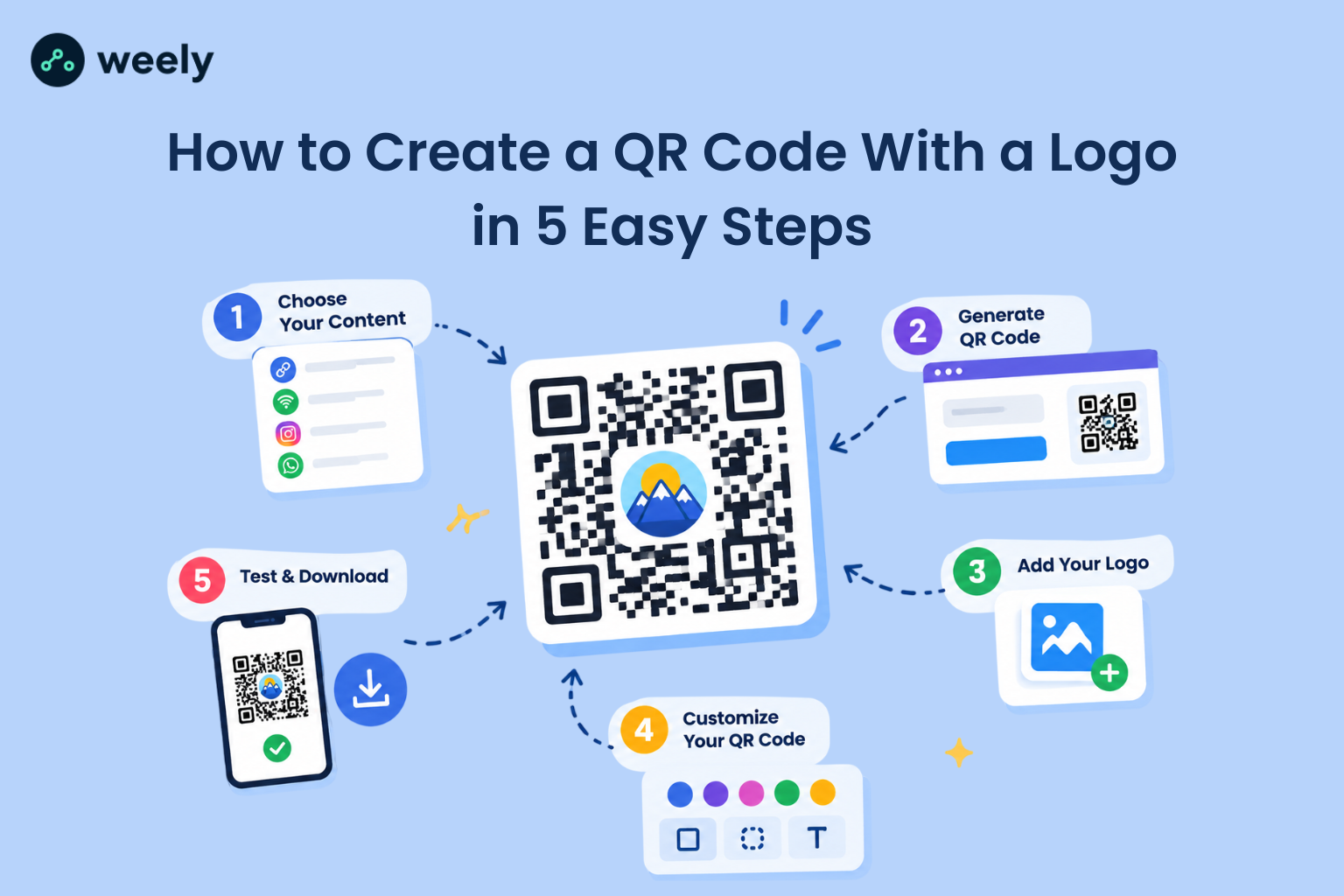
Want to add your brand logo to a QR code? Use a QR code generator with a logo. Enter your link, generate the code, upload your logo, adjust the colors, then test, and download it. These five steps are the simplest way to create QR code with logo without any design skills.
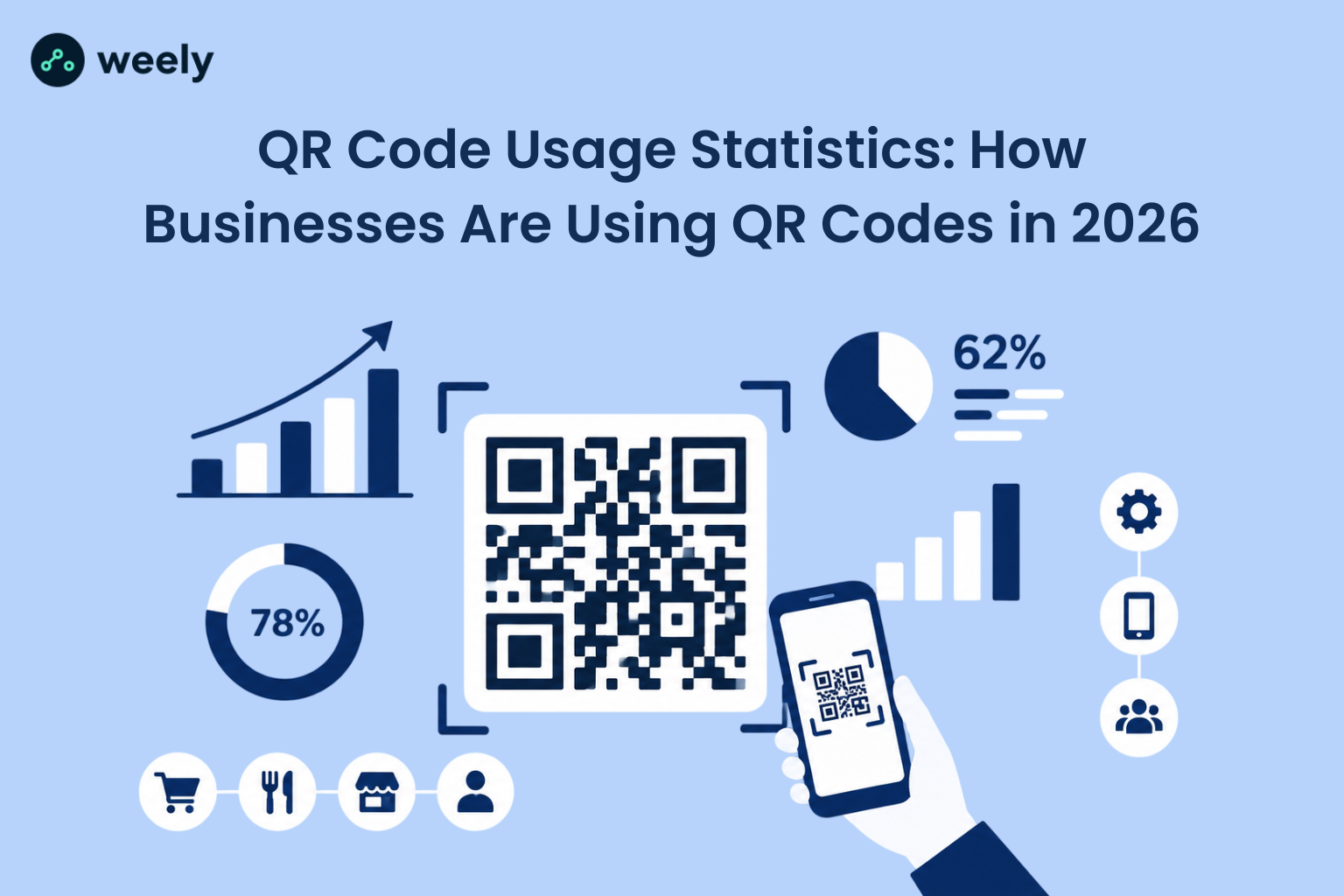
QR codes are now part of daily life. About 99.5 million US smartphone users scanned QR codes in 2025, and eMarketer expects that number to reach 102.6 million in 2026. With that many people scanning, a plain black-and-white square can look boring or even untrustworthy. A branded QR with logo tells people who you are before they scan.
This guide shows you each step in plain language. You will also learn the right logo size, how to pick colors, how to fix scan problems, and how to stay safe. Let's start with the basics.
What Is a QR Code With a Logo?
A QR code with a logo is a custom QR code that has your brand logo or image, usually in the center. The rest of the pattern stays clear enough for phones to read it. Think of it as a normal QR code that wears your brand colors, and symbol.
Businesses use a QR code with logo inside because it builds trust and helps people recognize the brand. You can place one on business cards, menus, product packaging, posters, event tickets, and shop windows. A logo also helps your code stand out when many codes sit side by side.
Many people ask who create QR code in the first place. A Japanese company called Denso Wave invented it in 1994 to track car parts. It was built for factories, but today anyone can use it.
Create Your Branded QR Code in 5 Simple Steps
If you have ever wondered how to make QR code with logo, the process is easier than it looks. People also search how to QR code generator when they simply want to know where to begin. Start with step one and work down the list. Each step takes only a minute or two.
Step 1: Choose What Your QR Code Should Open
Before you design anything, decide where people should land after they scan. A clear goal makes the whole process faster. It also helps you pick the right type of code.
Here are the most common choices:
- A website, blog post or landing page
- Plain text, such as a short message or a code
- A Wi-Fi network so guests can connect without typing a password
- An Instagram profile, or a WhatsApp chat
- Contact details so people can save your number or email
Some tools work like a QR code generator with details, where you fill in your name, phone and email to build a digital business card. Others work as a QR code to text generator, which turns a plain message into a code. If you only have a web address, a link to QR generator with logo is all you need.
Step 2: Generate Your QR Code
Next, open a QR maker with logo and paste your link, or content into the box. Click the button to generate the code. At this stage the code will look plain, and that is fine.
Look at the preview before you move on. Check that the link is correct and has no typing mistakes. If you use an online QR code generator with logo online, you can generate QR with logo online in seconds without installing anything.
Some people prefer to call these tools a QR creator with logo. The name does not matter. What matters is that the tool lets you upload a picture, and customize the design.
Step 3: Add Your Logo to the QR Code
Now comes the fun part. Upload your logo from your computer or phone. A QR generator with picture option lets you use any image, but a clean logo works best. Choose a PNG file with a transparent background if you can, because it blends into the code more smoothly.
Place the logo in the center and make it small enough to leave plenty of the pattern visible. This is how you get a QR code with logo in the middle that still scans well. You can also search for QR code with logo in middle and find the same method. Once the logo sits in place, check the preview again.
If you are wondering how to generate QR code with logo in the middle, the steps are simple. Upload the logo, keep it centered, shrink it a little, and test. A good QR code generator with logo in middle or QR code generator with logo in center will place it for you automatically.
Step 4: Customize Your QR Code
Customization turns a basic code into your own custom QR code with logo. Here you can change the colors, the shape of the dots, the corners, the background, and the frame around the code. Some tools also add a short call-to-action like "Scan me."
If you want a QR code generator with logo and color, match the colors to your brand. A deep blue, dark green, or black pattern on a light background works well. Keep the code dark and the background light.
Be careful with contrast. Light colors on a light background, or dark colors on a dark background, make scanning harder. Many phones can read a code that looks nice but is hard to see. Others will fail, so always choose strong contrast over fancy looks.
Step 5: Test and Download Your QR Code
Testing is the step most people skip, and it causes the most problems later. Scan your code with at least two phones, or use an online QR code scanner to check what it opens. Try from close up and from a bit farther away. Also test the downloaded file, not just the preview on screen.
If you plan to print the code on flyers or posters, print one small sample first and scan that. Paper, ink, and light all change how a code looks. Then download the best file for your needs. PNG works well for most uses, and SVG or PDF is better for large prints because it stays sharp at any size.
Can You Put a Logo in the Middle of a QR Code?
Yes, you can. A QR code with logo in the middle works because QR codes have built-in error correction. This means a code can still be read even if a small part is hidden or damaged. The logo covers a small part of the pattern, and the code fills in the gap.
There are four levels of error correction, from about 7% to about 30% recovery. A higher level lets you cover more, but a bigger logo still adds risk. So do not treat the maximum as a target. Keep the logo small, keep contrast strong, and always test the final result.
How Big Should a Logo Be in a QR Code?
The right QR code logo size depends on your code, and there is no single number that works for every case. A code that holds a short link has a simple pattern. A code that holds a long link has a dense pattern, so there is less room to spare.
Four things matter most. First, the error correction level you choose. Second, how complex the code is. Third, how much contrast the logo has with the background. Fourth, how the code will be used, such as on a phone screen or a large poster.
A good rule is to start small and grow the logo only if the code still scans every time. If scans become slow or fail, make the logo smaller. A QR code with logo inside should look balanced, not crowded.
How to Create a QR Code With a Logo for Free
Many people want to create QR code with logo free because they are on a small budget. The good news is that plenty of tools let you do this. A free QR code generator with logo usually lets you paste a link, upload a logo, choose colors, and download the file.
You may also see the spelling free QRcode generator with logo. It means the same thing. Search phrases like QR code generator with logo free, QR generator with logo free, and QR code generator with logo for free all lead to similar tools. What changes from tool to tool is what you get without paying.
Before you pick one, check a few things. Does it ask you to sign up? Some people want a QR code generator with logo no sign up so they can finish in seconds. Does it add a watermark? Can you download a high-quality file? Does the code keep working for good?
You should also know the difference between static, and dynamic QR codes. A static code stores your link inside the pattern itself, so it does not depend on any outside service. A dynamic code points through a service that may let you edit the link later or see scan counts. Dynamic codes can be useful, but they rely on the provider, so read the terms first.
Do Free QR Codes Expire?
Not always and it depends on the type. A static code does not expire by itself because the data lives inside the code. People who search for a QR code generator free no expiry usually want this kind of code.
A dynamic code works differently. It sends people through a link managed by the provider. If the provider ends a free plan or removes the account, that link may stop working. Not every provider does this, so check the policy before you print hundreds of codes.
Many people also ask is QR code free. The technology itself is free to use. Denso Wave holds the patent but has chosen not to enforce it, so anyone can make and use a QR code. The tools you use to make one may be free or paid.
Are QR Code Generators Legit and Safe?
Most tools are fine, but you should still be careful. People often ask is QR code generator legit after hearing about fake codes used in scams. The code itself is only a link, so the risk comes from where that link goes.
Follow these safety checks:
- Use a tool from a brand you can find and trust
- Make sure your destination link starts with HTTPS
- Check if the code goes through a redirect, and know where it ends
- Test the code before you publish or print it
- Never scan a code from a sticker that looks pasted over another one
These habits protect you and your customers. A branded code also helps here, because people can see your logo and feel more confident to scan.
How to Create Different Types of QR Codes With a Logo
The same steps work for many uses. You pick the type, enter the details, add your logo, and test. Here are the most common ones.
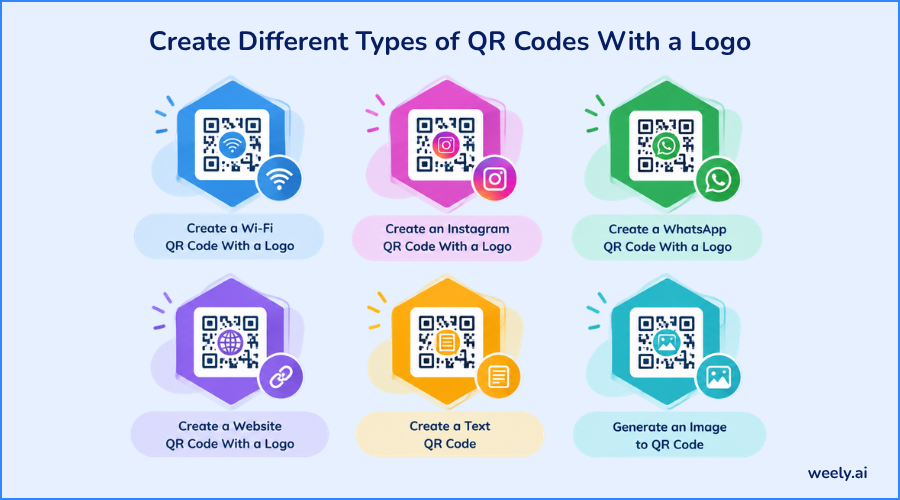
Create a Wi-Fi QR Code With a Logo
A wifi QR code generator with logo free lets guests join your network by scanning. You enter your network name, password, and security type. Then you add your logo and download the code. This is handy for cafes, offices, hotels, and homes.
Create an Instagram QR Code With a Logo
An instagram QR code generator with logo free turns your profile link into a scannable code. Paste your Instagram profile link, add your logo, and place the code on menus, packaging, or business cards. People can follow you with one scan.
Create a WhatsApp QR Code With a Logo
A whatsapp QR code generator with logo free helps customers start a chat with you quickly. First, build your chat link with a WhatsApp link generator. Then add your logo, download the file, and test it. It works well for shops, services and support.
Create a Website QR Code With a Logo
For a website, use any QR code generator with logo online. Paste your page link, add your logo, and test the code. A QR generator with logo free is enough for most small sites.
Create a Text QR Code
A text code stores a short message, such as a note or a serial number. Use a QR code to text generator, type your message, and add a logo if you like. Keep the text short because more text makes a denser code that is harder to scan.
Generate an Image to QR Code
This one confuses many people. Adding a picture to a code is not the same as making a code from a picture. If you want to generate image to QR code, you first upload the image to a website or cloud folder. Then you turn that link into a code. The image is not stored inside the pattern itself.
How to Create a QR Code With a Logo and Colors
Color makes a code feel like part of your brand. A QR code generator with logo and color lets you change the dots, the corners, and the background. Start with your main brand color, then check how it looks next to the background.
The pattern should be clearly darker than the background. Avoid pale yellow, light gray, or neon colors for the dots. If your logo has many colors, use a simple version of it, because small details get lost inside a code.
After you pick colors, test again. A code that looks great on your screen may fail in dim light or on glossy paper. A quick test now saves you from reprinting later.
Can You Create a QR Code With a Logo in Canva?
Yes, Canva lets you add QR codes to designs. If you search for a QR code generator with logo canva, you will find that Canva works well when you are already building a flyer, poster or social post. You can place the code inside your layout and add your brand fonts and colors.
Still, making a design and making a QR code are two different jobs. Canva is a design tool first. A dedicated QR tool gives you more control over code shape, error correction, file size, and download format. Many people make the code in a QR tool and then drop it into Canva.
How to Create Multiple QR Codes at Once
Sometimes you need more than one code. You may have product labels, restaurant tables, badges for event management, or store locations. In that case you can generate multiple QR codes instead of making them one by one.
A QR code list generator takes a list of links or names, often from a spreadsheet, and turns each line into its own code. This saves hours of work. Check that your tool supports bulk creation and lets you add the same logo to every code. Then test a few from the batch before printing all of them.
How to Create a Small QR Code Without Losing Scanability
You can shrink a code, but only up to a point. A QR code generator small size option is useful for tags, receipts, and stickers and labels. A free QR code generator small size can also give you a compact file.
Small size is not the only thing that matters. Scanning distance matters too, because a small code must be scanned from close by. A simple link also helps, since a short link makes a simpler pattern with bigger dots. You can make one with a URL shortener. Always keep the quiet zone, which is the empty border around the code, and print at good quality.
Do not promise yourself that any code can be tiny. Print a test copy at the final size and scan it with different phones. For more detail, read this guide on how to choose the right QR code size. If your test fails, make the code a bit bigger.
Why Isn't My QR Code With a Logo Scanning?
Don't worry if your code fails. Most problems have simple fixes. For a wider checklist, see these tips for QR codes that are not working.
The Logo Is Too Large
A large logo hides too much of the QR pattern and weakens error correction. Shrink the logo step by step, scanning after each change, until the code reads quickly again.
The QR Code Has Poor Contrast
Phones struggle when the dots and background look too similar. Use a dark pattern on a light background, and avoid pale colors, because strong contrast helps cameras find the code.
The QR Code Is Too Small
Tiny codes are hard to scan, especially from far away. Make the code larger, or ask people to scan from closer. Print a test at the final size before ordering.
The Image Is Blurry
A low-quality file makes the dots look fuzzy, so phones cannot read the edges. Download a higher resolution version, or use an SVG or PDF file for sharp print results.
The Quiet Zone Is Missing
Every code needs a clear, empty border around it so phones can clearly see where it starts. Keep text, images and edges away from all four sides of the code.
The QR Code Was Stretched or Distorted
Always scale the code evenly so it stays square. If it looks wider, or taller than it should, phones may fail to read it. Lock the aspect ratio when resizing.
The QR Code Is Partially Covered
Stickers, folds, glare, and extra graphics can block part of the pattern. Keep the code clean and flat, and make sure nothing overlaps it except your own small center logo.
The Printed Version Is Low Quality
Poor ink, rough paper, or low resolution can ruin a good code. Print one test copy on the final material, then scan it carefully before you print the full batch.
The Destination URL Doesn't Work
A broken or mistyped link makes a perfect code look broken. Open the link on your phone, fix any errors, and confirm the right page loads without delay or warnings.
The QR Code Wasn't Tested Before Publishing
This is a very common cause of trouble. Test the code on screen and on paper, with more than one phone, before you ever share, post, or print it anywhere.
Best Practices for Creating a QR Code With a Logo
Use this quick checklist every time you make a code:
- Use a clear, high-quality logo with simple colors
- Keep the logo small and leave plenty of pattern visible
- Choose strong contrast between dots and background
- Keep the quiet zone clear around the code
- Never stretch or squeeze the code
- Download a high-resolution file for print
- Test on several phones, on screen and on paper
- Check the destination link before you publish
Follow these points and your custom QR code with logo will look good and scan well. They also help any QR code generator small size design stay readable.
Create a QR Code With a Logo Using Weely AI
If you want to try these steps right now, Weely AI gives you a simple place to begin. Follow the same flow from this guide: create the code, add your logo, customize the design, test it, and download it. A good QR code generator with logo keeps this process short and clear.
You can use it as a QR code generator with logo online and check how your design looks before you download. When you are ready, sign up Weely AI and create your branded code, then test it on your own phone first.
Final Thoughts
Creating a QR code with a logo does not have to be hard. Choose where the code should lead, generate it, add your logo, customize the design, and test it before you share or print it. A strong QR code generator with logo makes the job quick, and a few simple checks keep your code easy to scan.
Ready to give your brand a code people will notice? Start with Weely AI and make your own today.