Want people to find your business, event, or address without typing a single letter into Google Maps? A Google Maps QR code lets anyone scan and land directly on your exact location. In this guide, you'll learn what a Google Maps QR code is, how to create a QR code for Google Maps from any link, and how to generate one for free using the Weely.ai QR code generator part of the Weely.ai link and QR code platform.
What Is a Google Maps QR Code?
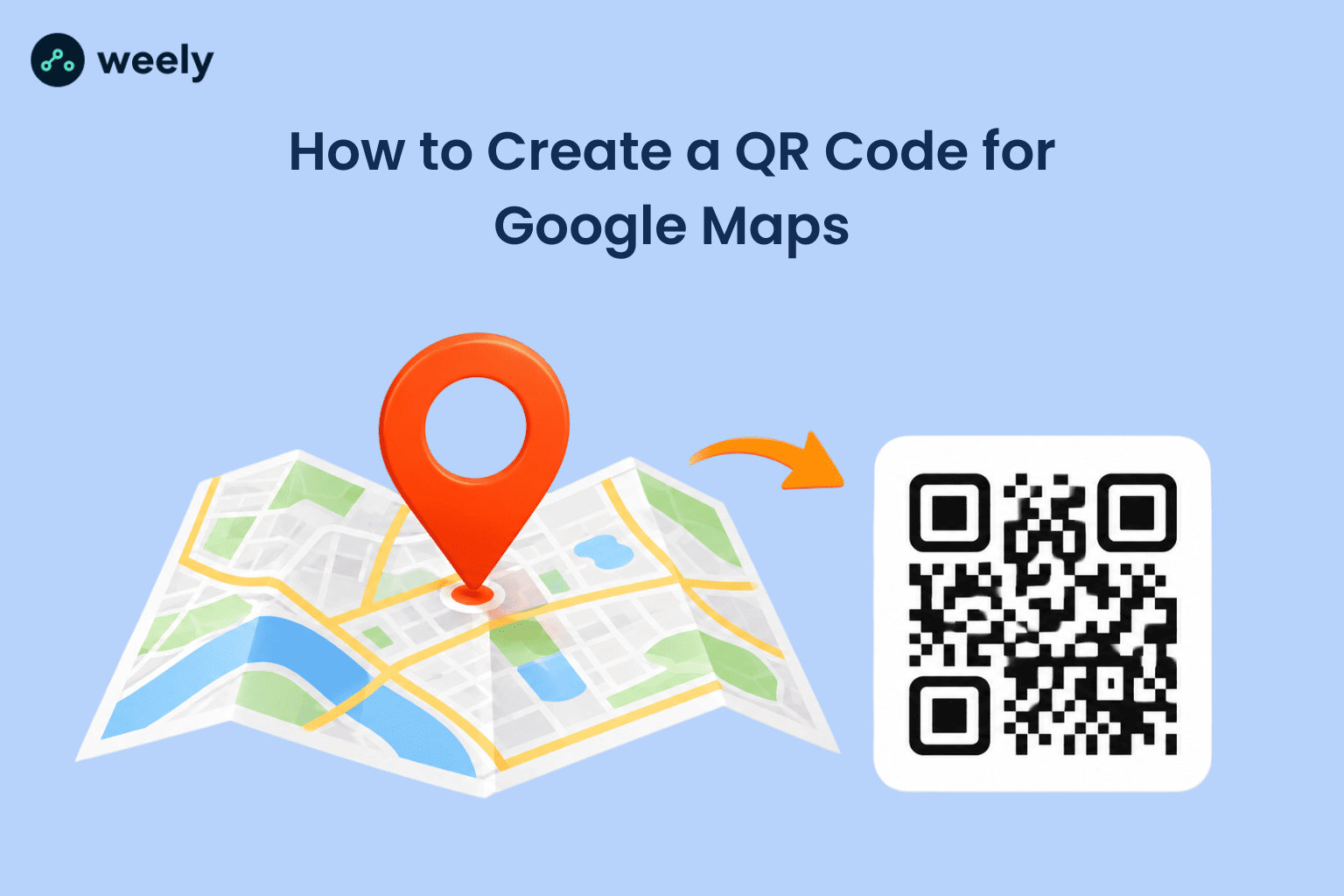
A Google Maps QR code is an image that you can scan, and has a link to a Google Maps location. Instead of typing an address or searching for a business by name, a person simply points their phone camera at the code, and it opens that exact spot directly in Google Maps, no searching required.
When someone scans it, their phone reads the embedded link and automatically opens Google Maps (in the app or browser), showing the pinned location, business, or set of directions you chose.
Businesses, event organizers, and hosts use these codes because they remove friction. A guest at a wedding, a customer looking for your store, or an attendee heading to a conference doesn't need to know your address by heart; they just scan and go. It works equally well printed on paper or displayed on a screen, making it one of the simplest bridges between offline materials and online navigation.
How to Create a QR Code for Google Maps
Method 1: Generate a QR Code From a Google Maps Link
Best for: Users who already have a Google Maps URL.
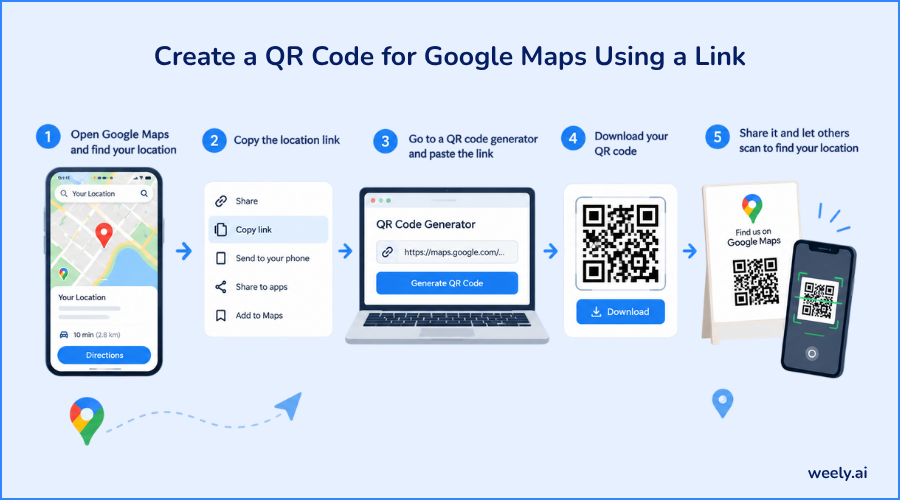
This method should be your primary method, because it's the simplest workflow.
Step 1: Find Your Location on Google Maps
Open Google Maps and search for the business, address, venue, or destination you want to share.
Step 2: Copy the Google Maps Link
Select the location and choose Share → Copy link. You now have the Google Maps URL that you want to convert into a QR code.
Step 3: Choose "Website" in Weely.ai
Open the Weely ai QR Code Generator and select Website under Select QR Code Type. Paste your Google Maps URL into the Website URL field.
Step 4: Customize Your QR Code
Open the Design tab to customize your QR code. Depending on the available features, you can adjust:
- Pattern
- Frame
- Corner style
- Color
- Logo
- Advanced settings
Step 5: Generate and Download
Once you're happy with the design, generate your QR code and download it.
Important: Scan the QR code before printing it; you can use your phone's camera or the Weely ai free QR code scanner to make sure it opens the correct Google Maps location.
Method 2: Generate a QR Code Using Weely.ai Dynamic QR Code
Best for: Businesses and marketers who want more flexibility and potentially want to track scans.
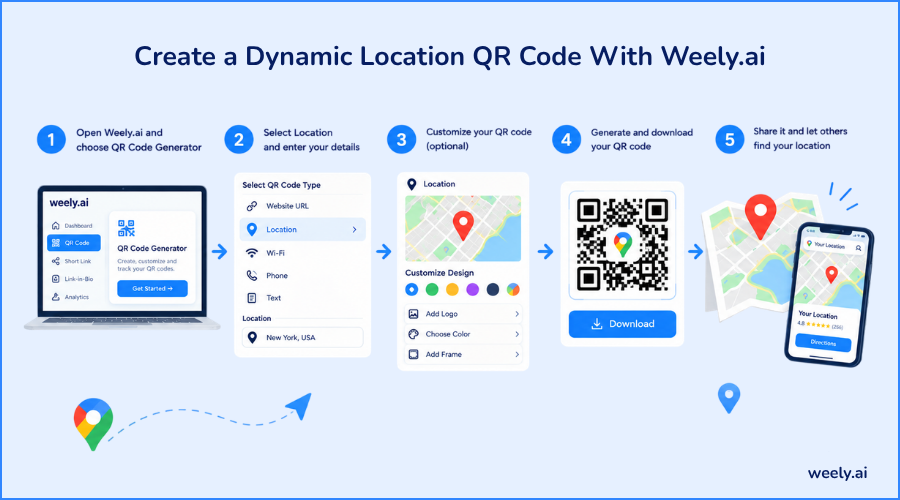
This should be presented as a different method, because the value proposition is different: a dynamic QR code lets you enable scan tracking and update the destination later without reprinting.
Step 1: Create a Dynamic QR Code
Instead of treating the QR code as a simple static link, choose the Dynamic QR Code option in the Weely ai QR code tool. Dynamic codes are built on top of the Weely ai short link platform, so your QR code and its short link share the same trackable destination.
Step 2: Add Your Google Maps Destination
Enter the Google Maps URL or location information as the destination.
Step 3: Customize the QR Code
Use the design options to create a branded QR code. You can customize elements such as
- Pattern
- Frame
- Corner
- Color
- Logo
- Advanced design options
Step 4: Enable Scan Tracking
Look for the "Track your scans" option. If your Weely ai plan supports tracking, you can enable it to monitor QR-code scans.
Step 5: Download and Test
Download the QR code and scan it with a phone before using it on printed materials.
Google Maps QR Codes for Businesses, Restaurants & Events
A QR code for Google Maps isn't just a novelty; it's a practical tool for guiding real foot traffic to a real address, and it's used across a wide range of industries. See more QR codes for business use cases on Weely.ai.
Google Maps QR Code for Businesses
Retail stores, offices, hotels, salons, and clinics all benefit from a scannable location code. Display it in your storefront window, business cards, or receipts so customers, delivery drivers, and first-time visitors can find you without confusion, even in busy shopping centers or office buildings. Many businesses pair a location code with a QR code for Google reviews, allowing customers to find the store and leave feedback just as easily.
Google Maps QR Code for Restaurants
Restaurants and cafés often print a QR code on menus, table tents, or takeout bags with a simple call to action like "Scan for our location" or "Get directions to our restaurant." It's especially useful for diners searching for parking or for delivery customers trying to find the entrance.
Google Maps QR Code for Events & Weddings
Event planners and couples use location QR codes on invitations, programs, and signage. A code that says "Scan for venue location" or "Get directions to the event" removes any confusion for out-of-town guests trying to find an unfamiliar venue. A QR code for Google Maps isn't just a novelty; it's a practical tool for guiding real foot traffic to a real address, and it's used across a wide range of industries.
Where Can You Use a Google Maps QR Code?
Because a Google Maps QR code is just a small image, you can place it almost anywhere people might need directions. Browse more places to put a QR code for ideas.
- Business card — Find our office
- Flyer — Get directions
- Poster — Scan for location
- Restaurant menu — Find our restaurant
- Wedding invitation — Get venue directions
- Event ticket — Find the event
- Packaging — Find our store
Tips for Creating a Google Maps QR Code That Scans Easily
A QR code is only useful if it scans reliably on the first try. A few simple design choices make a big difference.
1. Use High Contrast
Stick to dark code patterns on a light background. Low-contrast color combinations (like light gray on white or two similar pastel shades) can confuse scanners and slow down or block the scan entirely. For more on this, see Weely ai QR code design tips.
2. Allow for Plenty of Space Around the QR Code
Each QR code requires a “quiet zone,” which is a blank border of white space around the edges. And if you cram the code with text, images, or borders, phone cameras may not be able to read it properly.
3. Choose the Right Size
Don't shrink your QR code just to save space. As a general rule, the further away someone will be standing when they scan it, the larger the code needs to be. A code on a business card can be small, but one on a poster or storefront window should be sized for scanning from a few feet away. Weely.ai guide on choosing the right QR code size walks through exact sizing for print and digital use.
4. Implement High-Resolution QR Code
Download your code always in a high-resolution format. PNG is a good option for most digital and print usage, while SVG is best for large-format printing, as it scales without losing quality.
5. Print preview
Print a sample copy or view it full size on screen and then scan it with a few different phones before finalizing your design. This ensures that the code will work correctly at the size and material you intend to use and not just on your screen.
Does a Google Maps QR Code Expire?
Whether a QR code for Google Maps "expires" depends on the type of code you create. Weely ai breakdown of the different types of QR codes covers this in more detail.
Static QR codes have the destination link baked directly into the code itself. Once created, that link can't be changed. If the underlying Google Maps URL stops working or you need to update the destination, you'd need to generate and reprint a brand-new code.
Dynamic QR codes, like the ones you can create with Weely ai, point to a short redirect link that you control. That means the QR code image itself never has to change, even if you later need to update where it points, since the destination is managed on the platform's end rather than hard coded into the code.
In either case, the QR code image itself doesn't "wear out"; it will keep scanning indefinitely. What can break is the destination: if you change, delete, or move a Google Maps link, the code will take you to the wrong place unless it’s dynamic and gets updated.
Static vs. Dynamic Google Maps QR Codes
Here's a simple side-by-side comparison to help you decide which type fits your needs:
Change destination
- Static: No, requires a new code
- Dynamic: Yes, update the link anytime
Printed QR replacement
- Static: Required for any changes
- Dynamic: Not required
Tracking
- Static: Not available
- Dynamic: Scan analytics available
Best for
- Static: Permanent, one-time links
- Dynamic: Flexible or ongoing campaigns
If you're printing a code for a single event or a location that will never change, a static code is fine. But if you're placing your QR code on signage, packaging, or materials that are expensive or slow to reprint, a dynamic QR code from Weely ai gives you the flexibility to update the destination and track scan activity without redesigning anything.
Final Thoughts
A Google Maps QR code is a small addition that solves a real problem: getting people from wherever they're standing or sitting to your exact location, without typos, wrong turns, or wasted time. Whether you're printing it on a business card, a restaurant menu, or a wedding invitation, the process is the same: grab your Google Maps link, generate the code, customize it if you'd like, and always test it before it goes out into the world. If you also want to track how many people scan it or update the destination later without reprinting anything, a dynamic QR code from Weely ai gives you that flexibility from day one.
Frequently Asked Questions About Google Maps QR Codes
Can I create a Google Maps QR code for free?
Yes. Weely.ai free QR code generator lets you turn a Google Maps link into a scannable QR code at no cost, with no design experience needed.
Can I create a QR code for any Google Maps location?
Yes. As long as you can find the location on Google Maps and copy its share link, you can turn it into a QR code whether it's a business, home address, event venue, or a set of driving directions.
Can I turn a Google Maps link into a QR code?
Absolutely. That's exactly what the process above walks through: copy the Google Maps link, paste it into the generator, and download your finished QR code.
Can iPhone and Android users scan a Google Maps QR code?
Yes. Both iPhone and Android devices can scan QR codes directly through their built-in camera apps, without needing to download a separate scanner app.
Can I add a logo to a Google Maps QR code?
Yes. Weely.ai customization options let you add your logo, adjust colors, and apply frames to your QR code, so it matches your brand while still scanning reliably.
Can I print a Google Maps QR code?
Yes. Download your QR code as a high-resolution PNG or SVG file, and it's ready to print on business cards, flyers, posters, menus, or invitations.