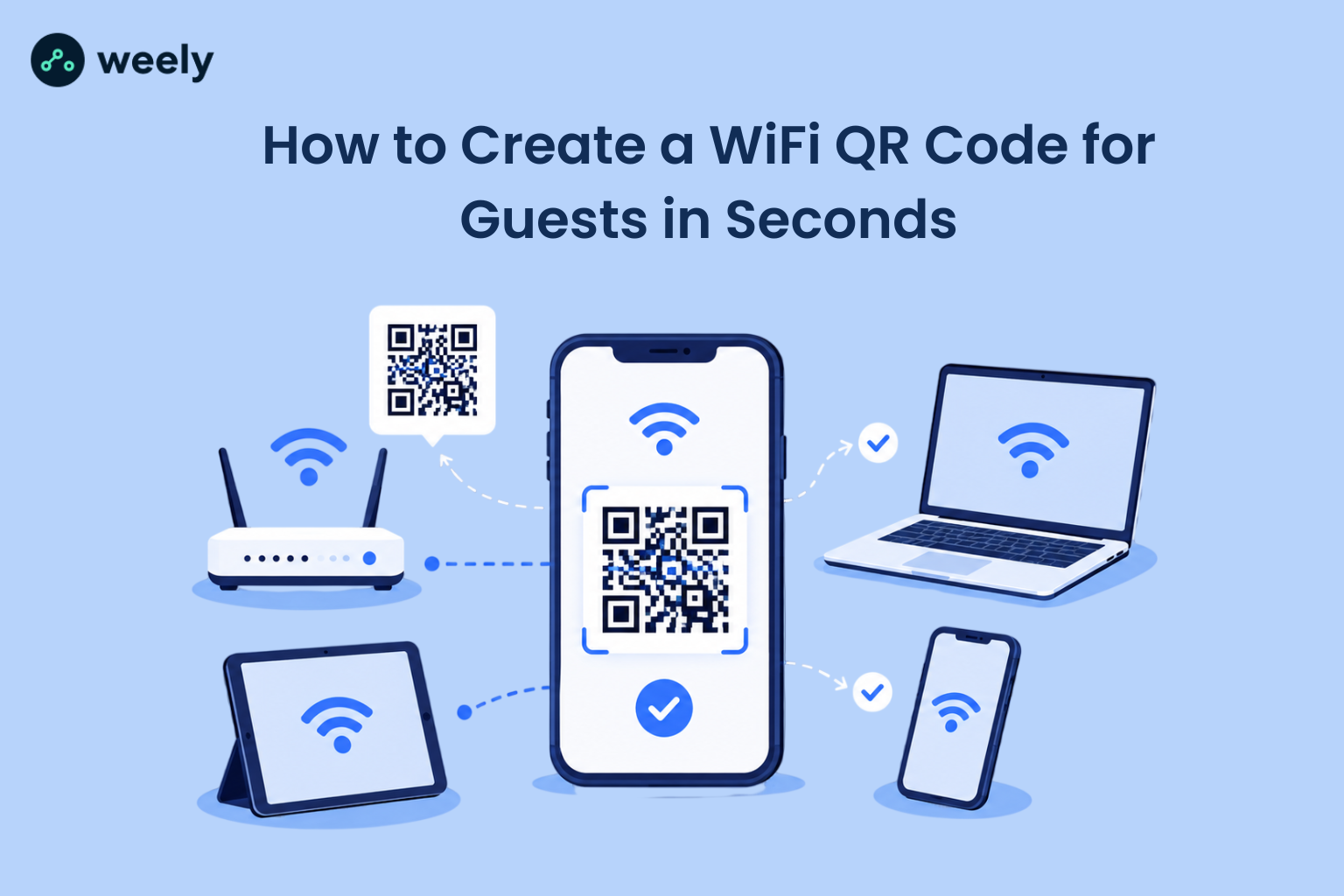
Guests hate typing long WiFi passwords. Research indicates that scan rates for QR code adoption have surged over 300% recently, driven by mobile consumers' demand for instant, tap-free connectivity. Most smartphones sold today can scan a code and join a network in less than five seconds, faster than reading a password off a sticky note, in fact. That’s why a WiFi QR code for guests has become the standard way for hotels, cafes, offices and short-term rentals to get people online without friction.
In this guide, you’ll learn exactly what a WiFi QR code is, why a WiFi QR code for guests works better than sharing a written password, and how to create one for free in under a minute, whether you’re running a business or just hosting friends at home.
What Is a WiFi QR Code?
A WiFi QR code is a small, square barcode that has your network name, password and security type. When you scan it with your phone camera, the phone reads that hidden information and connects automatically; no typing involved.
This version is different from a regular QR code for WiFi you might see on a poster. The WiFi version is constructed using a special format that phones recognize as a "connect to network" command, rather than a website link. The WiFi version is different from other formats, as you can see in this guide to QR codes for WiFi.
How Does a WiFi QR Code Work?
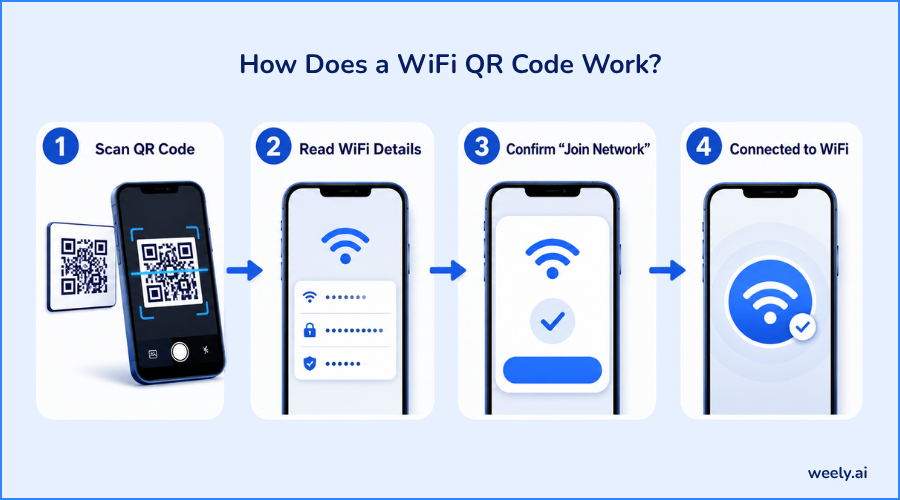
Behind the scenes, a WiFi QR code encodes a short text string with your network name (SSID), your password and your encryption type (e.g., WPA or WPA2). Your phone's camera app scans that string, recognizes it as Wi-Fi connection data, and pops up a "Join Network" prompt. Tap it and you’re online. You don’t need a separate scanner app on modern Android and iPhone devices. If you'd like to try scanning one right away, you can use a QR code scanner online in your browser.
Why Use a Guest WiFi QR Code?
A guest WiFi QR code solves the problem every host, hotel and business owner knows too well: guests constantly asking for the WiFi password and passwords that are easy to mistype, forget or misread. A QR code cuts out all that back and forth.
It also feels more professional. If you see a printed business WiFi QR code on a table, receipt or check-in sheet, you know the host has thought about the guest experience, something you never get from a scribbled password on a whiteboard. And because guests never actually see the password, it’s easier to keep it private and change it without any confusion. You can create one directly from a QR code generator tool built for this kind of use case.
Guest WiFi QR Code for Hotels, Cafes & Restaurants
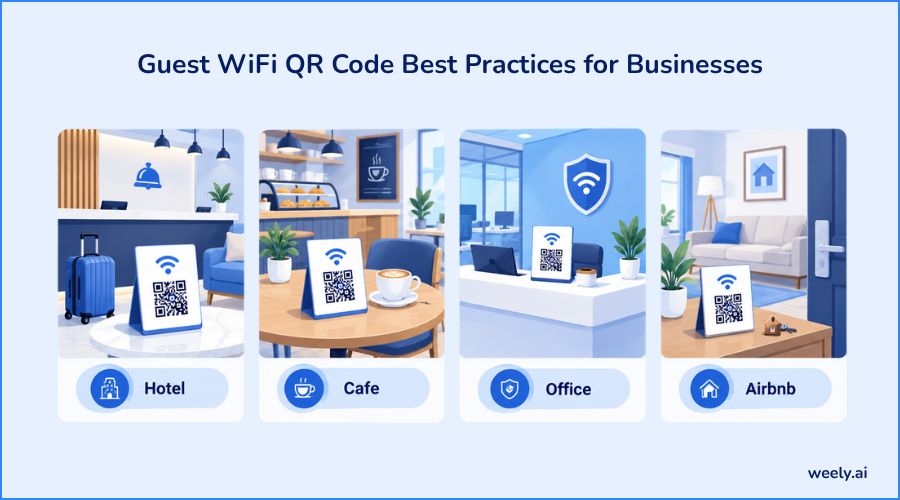
Hotels often have a guest WiFi QR code on the room key card, welcome folder or nightstand card so travelers can connect as soon as they walk into their room. Many properties combine this with broader signage strategies; see how QR codes support the hotel guest experience beyond just WiFi access.
Printing a guest WiFi QR code for cafes or a guest WiFi QR code for restaurants on table tents, menus, or receipts allows customers to get online while waiting for their order; no need to ask staff for a password. This works well alongside other QR codes designed for restaurants, and placing the code directly on printed menus is a common approach for QR code placement on menus.
Guest WiFi QR Code for Airbnb & Coworking Spaces
Short-term rental hosts increasingly rely on a WiFi QR code for Airbnb guests, placed in the welcome book, on the fridge, or sent directly through the check-in message. This small touch reduces guest messages asking, "What's the WiFi password?" one of the most common questions hosts receive. It's a simple example of QR codes for personal use that make everyday hosting easier.
Shared workspaces benefit the same way: a WiFi QR code for coworking spaces posted near the entrance or on desks lets new members and visiting clients connect instantly without needing an employee's help.
Guest WiFi QR Code for Offices & Visitors
For businesses with many visitors, a guest WiFi QR code for offices placed at the reception area will save front-desk staff from repeating the same password dozens of times a day. It’s also great as a WiFi QR code for visitors at events, conferences or client meetings; many organizers combine it with QR codes for event check-in so attendees can register and connect online in the same step.
A QR code for the guest WiFi network printed on a sign-in sheet or visitor badge, like a QR code on business cards, gets everyone connected in seconds without slowing down the front desk.
How to Create a WiFi QR Code (Step-by-Step)
Whether you’re creating a WiFi QR code for your home or your business, here’s precisely how to do it.
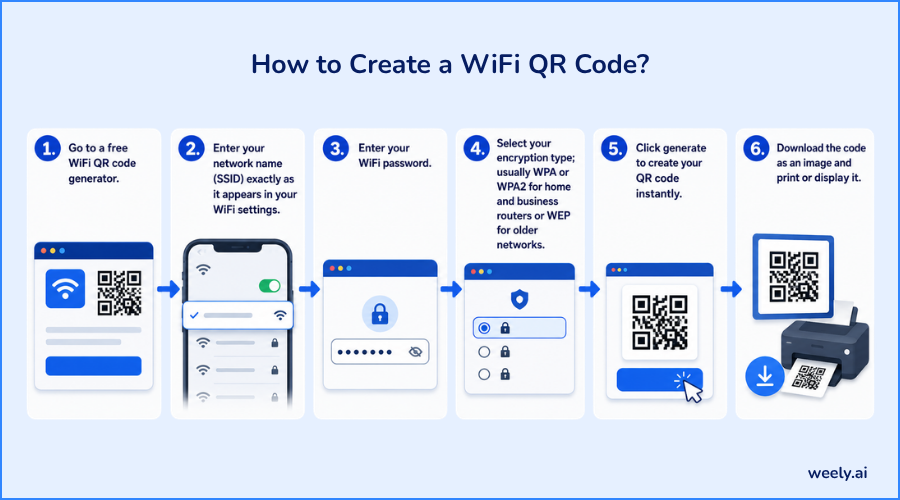
- Go to a free WiFi QR code generator.
- Enter your network name (SSID) exactly as it appears in your WiFi settings.
- Enter your WiFi password.
- Select your encryption type; usually WPA or WPA2 for home and business routers or WEP for older networks.
- Click generate to create your QR code instantly.
- Download the code as an image and print or display it.
That’s the whole process of how to make a WiFi QR code without any technical skills or software installation. The majority of tools finish processing within a minute.
How to Create a WiFi QR Code for Guests Specifically
If you’re wondering how to create a WiFi QR code for guests, the main difference is which network you’re encoding. Instead of giving out your main WiFi password, create a separate guest network with its own SSID and password and then generate the code using the details of that network. This isolates your primary devices and files from guest traffic, which is safer for your home and business network. If you are keen to learn more about keeping guest access separate from internal systems, check out this breakdown of QR code security practices. This is the same method as how to make a QR code for guest WiFi for offices, rentals and hospitality settings.
How to Create a Guest WiFi QR Code for Free
This service is available at no cost. With a free QR code generator for WiFi, you can usually create unlimited codes for free, with the option to upgrade later for custom colours, a logo or a branded design. Look for a WiFi QR code generator free of hidden fees, sign-up walls, or watermarks; try creating a QR code for free to see how quickly it works. So whether you’re a one-person host or a multi-location business, it’s easy to find a free WiFi QR code generator for your guests.
Best Free WiFi QR Code Generators
Not every WiFi QR code generator is built the same way. When choosing a WiFi QR code generator, select one that is fast, does not store your password on its servers longer than necessary, and produces a clean, scannable QR code without any additional clutter.
What to Look for in a WiFi QR Code Tool
A good WiFi QR code maker should provide the following:
- Privacy: Your password shouldn't be stored or shared after the code is generated
- Customization: The ability to add your logo or brand colors, especially useful for a WiFi QR code creator used in business signage, similar to the options available through custom QR code designs
- Format options: Static codes for permanent networks or dynamic codes if you plan to update the password later without reprinting
Choose the right WiFi QR code generator right away and you won’t have to redo signage every time you change your password.
How to Share WiFi With Guests Without Giving the Password
If you’ve ever been curious about how to share WiFi with guests without saying the password out loud, or texting it to strangers, a QR code is the cleanest answer. It solves how to share WiFi without giving the password directly because the guest's phone reads the credentials automatically; they never see the actual characters.
This also answers how to let guests connect to WiFi at scale, at events or in high-traffic businesses and how to connect guests to WiFi without pulling staff away from other tasks. Many businesses layer this solution with a guest network that is isolated from internal devices to add a layer of security. Guests can easily connect but can’t access shared files or printers on the main network.
How to Scan a WiFi QR Code (Android & iPhone)
On both of the major phone platforms, scanning a WiFi QR code with the built-in camera app works, with no download needed.
How to Scan a WiFi QR Code on Android
Open the Camera app and point it at the code. Tap the notification that appears. Some Android phones will also let you scan directly from the WiFi settings menu itself by tapping “Add network” and selecting the QR code option. This WiFi QR code scanner Android feature is available on most devices with recent Android versions and connects in less than five seconds after the prompt appears.
How to Scan a WiFi QR Code on iPhone
Open the Camera app (not a separate QR app) and point it toward the code. Tap the WiFi banner that appears at the top of the screen. Connect automatically with iPhone by tapping on "Join." The normal way to get a Wi-Fi QR code scanner on an iPhone is without installing anything extra; for a full walkthrough, see scanning QR codes on the iPhone.
Whether you're on a WiFi QR code Android or a WiFi QR code iPhone, the process to connect to WiFi with a QR code is nearly identical, and it works as a reliable way to connect to WiFi without password QR code entry.
Guest WiFi QR Code Best Practices for Businesses
If you're setting up a guest WiFi QR code generator for ongoing business use, a few habits keep things running smoothly:
- Use a dedicated guest SSID separate from your main business network so visitor devices can't reach internal systems
- Rotate the password periodically and regenerate the code to keep access limited to current guests
- Add branding; a logo or brand colors on the printed code makes it feel like part of your business, not an afterthought
- Place it where guests naturally look; on menus, receipts, welcome signs, or check-in desks, rather than hidden in a drawer
These small details turn a simple customer WiFi QR code into part of a polished guest experience. If you're managing a WiFi service across multiple locations, it's worth comparing QR code generator pricing plans to find one that fits your setup.
Conclusion
A WiFi QR code for guests is the fastest, most guest-friendly way to share internet access, whether you host hotel guests, cafe customers, Airbnb travelers or office visitors. It takes less than a minute to set up, makes your network more secure and eliminates the hassle of typing or re-entering passwords. If you haven't done so yet, now's the time: sign up free and create your own WiFi QR code for guests in seconds.
Frequently Asked Questions
What is a WiFi QR code?
A WiFi QR code is a scannable code that stores your network name and password, letting phones connect automatically without anyone typing anything in.
How do I create a WiFi QR code for guests?
Enter your guest network's SSID and password into a free WiFi QR code generator, choose your encryption type, and download the code to print or display.
Is there a free WiFi QR code generator?
Yes. Most WiFi QR code tools offer free, unlimited code generation, with optional paid upgrades for custom branding or design features.
How do I share my WiFi password with a QR code?
Generate the code from your network details, then print or display it. Guests scan it with their phone camera and connect instantly, without ever seeing the actual password.
Can guests see my WiFi password if I use a QR code?
No. The password is encoded inside the QR code, not shown as readable text, so guests connect without ever seeing the characters themselves.
How do I scan a WiFi QR code on my phone?
Open your phone's built-in Camera app, point it at the code, and tap the connection prompt that appears on screen.
What's the best guest WiFi QR code generator for restaurants or hotels?
Look for a free, no-signup tool that lets you customize the code with your logo, and supports regenerating codes when passwords change.
Do WiFi QR codes expire?
The code itself doesn't expire, but it stops working once the WiFi password it's linked to is changed; at that point, you'll need to generate a new one.